Accessibility in F2’s windows
The following sections describe some of F2’s built-in functions that help increase accessibility.
Tooltips
F2 contains a number of tooltips that provide a brief description of menu items and text in the user interface. A tooltip appears when you hover the cursor over a menu item, a field, or an icon in the result list. You can customise the display of tooltips on the "General" tab in the "Personal settings" dialogue.
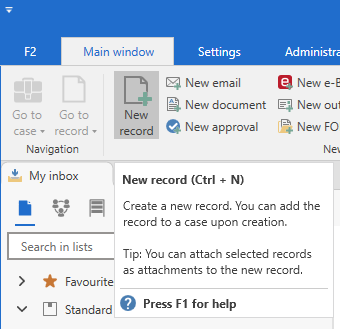
Tooltips also appear when navigating with the keyboard. To close a tooltip, press Ctrl + Shift + F10.
Info boxes
In F2’s user interface, you may encounter info icons next to fields, checkboxes, and other elements. Click on an info icon to open the info box, which contains relevant details about the related element. You can also open an info box using the keyboard by navigating to its related element and pressing Shift + F1.
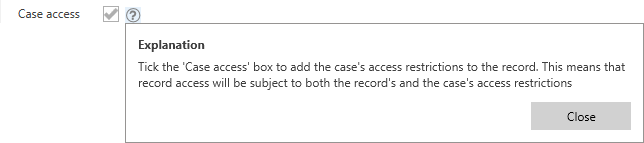
There are three types of info icons. Each opens an info box with its own title:
-
 opens the "Additional information" info box
 -
 opens the "Please note" info box
 -
 opens the "Explanation" info box.
Easier access to context menus
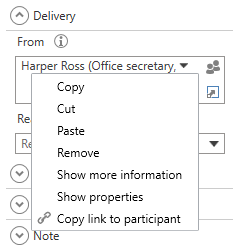
A number of metadata fields and search fields have extended accessibility for their content. In these fields, you can select the content and then click the drop-down arrow next to it to open a context menu. This enables navigation with a single mouse button.
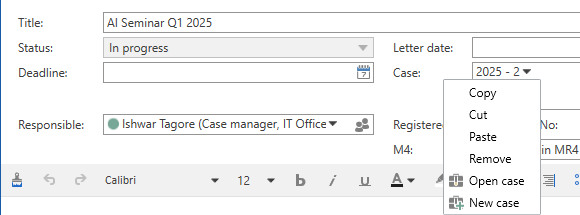
The drop-down arrow can be found in metadata fields in which you can enter participants or cases, as well as in most corresponding advanced search fields. The fields include:
-
Responsible
-
From, To, Cc, Xbc
-
Access restricted to
-
Record participants and Case participants
-
Case.
Context menus can also be accessed using the keyboard. Hold Shift and press the right or left arrow key in the direction of the case or participant you want to select. Then open the context menu using Shift + F10.
Participant tooltips in metadata and search fields
Metadata fields and search fields related to participants have tooltips similar to those of chat participants. Hover the cursor over a participant’s name to view the tooltip.
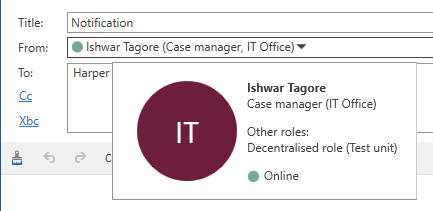
You can also view the participant tooltip using the keyboard by opening the participant’s context menu and selecting Show more information.
Selectors for file plans and action codes
The "File plan" and "Action code" fields have extended accessibility. Click the drop-down arrow in either field to open a list of available values.
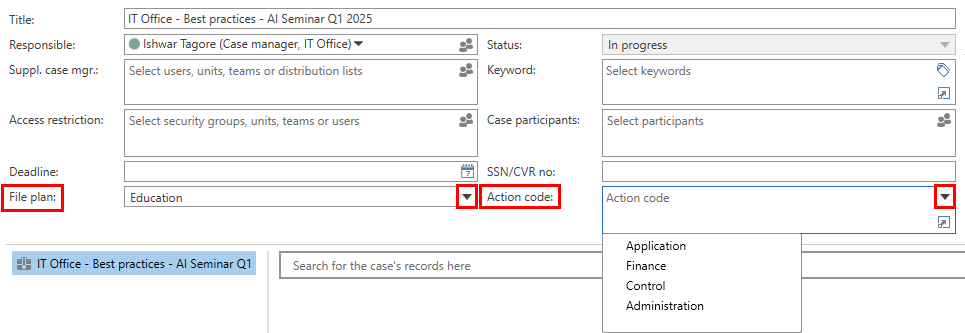
The drop-down arrow is found wherever either field appears, such as:
-
The case window
-
The "Create case" dialogue
-
The advanced search fields.