The record document
The following sections describe the record document, which you can edit in the record editor pane.
The record editor pane
The record editor pane is shown below the record metadata fields.
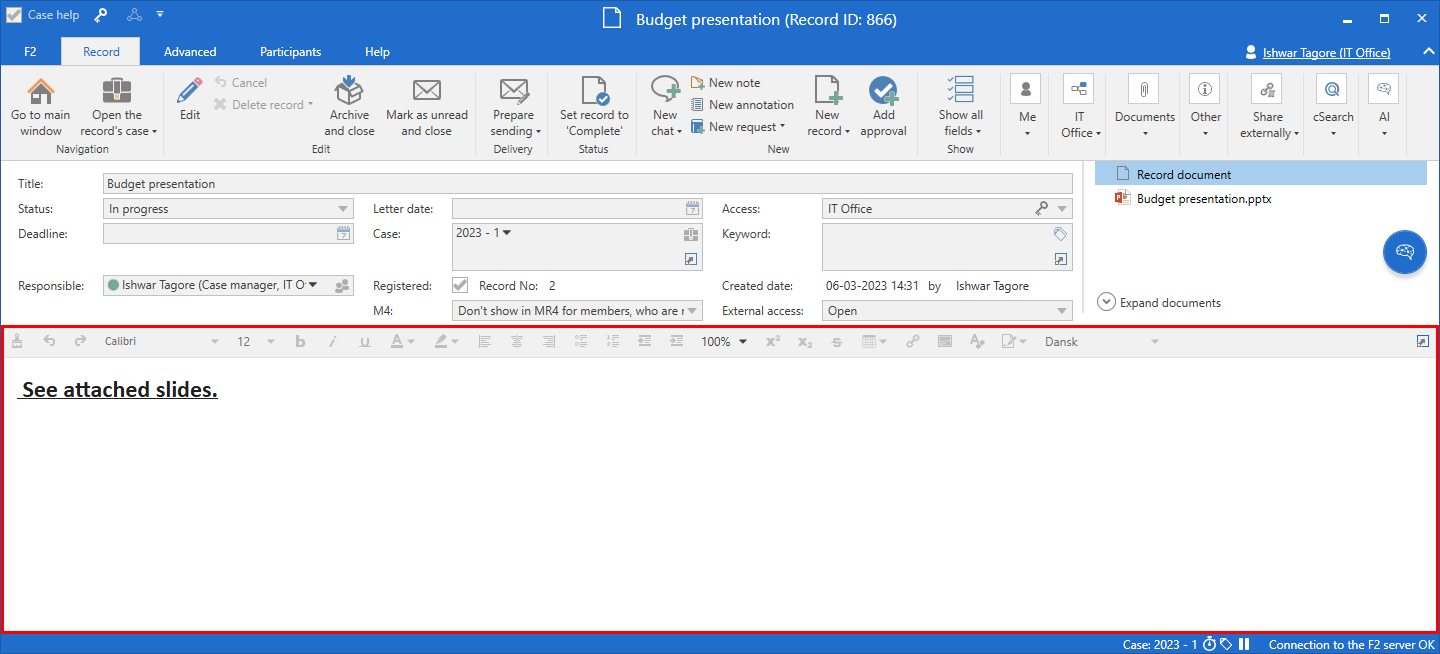
This is a standard text editor with common functions for writing and editing text in the record document. Here you can format your text and add tables and images, for example.
| F2’s default configuration for the record document is the Calibri font with single line spacing. |
Note the following functions:
| Icon | Function | Description | ||
|---|---|---|---|---|
|
Undo/Cancel undo |
Click on the left arrow to cancel the last action in the editor. Click on the right arrow to cancel the last undo action. These functions work as long as the changes have not been saved. |
||
|
Add/Edit hyperlink |
Add or edit a hyperlink in the editor. The hyperlink becomes active when the record is saved. |
||
|
Insert signature |
Click Insert signature to open a drop-down menu containing available email signatures. |
||
|
Language selector |
Select language for the editor in the drop-down menu. The language in the editor affects its spell checker and context menu.
|



Add/edit hyperlink
Click the hyperlink icon  in the record editor pane to open the "Add/edit hyperlink" dialogue. Here you can enter the text or a title in the "Title" field and the URL itself in the "Link" field.
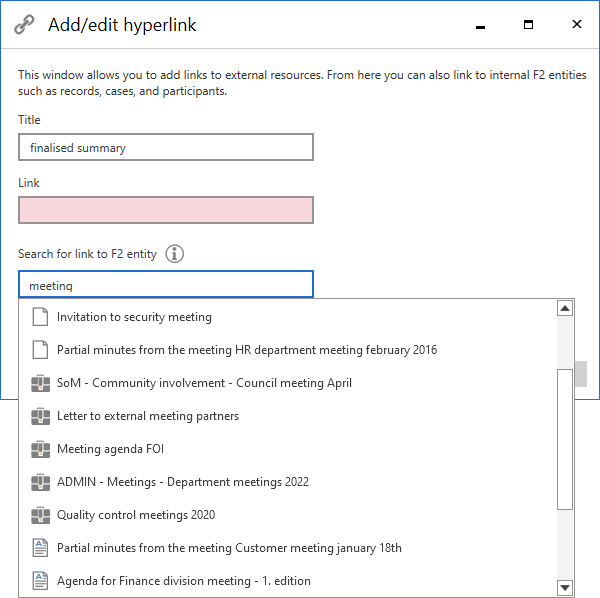
You can also search for F2 entities such as records, documents, and participants in the dialogue. Enter a search term or at least three characters in the "Find link to F2 entity" field to see F2’s suggestions. The icons of the results indicate their type.
Refine your entity search by using prefixes. Use r:, c:, d:, or p: to limit your search results to records, cases, documents, or participants, respectively.
|
Once you have found the relevant entity, double-click it to add it to the "Link" field. If you haven’t already entered a title, F2 will automatically fill in the "Title" field with the entity’s name.
Click Save to create the text as a hyperlink in the record document. You can click the link after saving the record.
| You can right-click on a URL or f2p link to open it in a new F2 window, even when the record is in edit mode. |