File plan
A file plan is an overview of the organisation’s case areas divided into categories. File plans are primarily used in public administration to ensure compliance with record-keeping requirements.
A file plan is divided into file plan codes, which are used for marking cases in relation to the organisation’s classification system. It is possible to associate a security group and action codes with a file plan code.
Users with the "Value list administrator" privilege can create and maintain file plan codes in F2.
The file plan is the same for all users in an F2 installation.
File plan administration
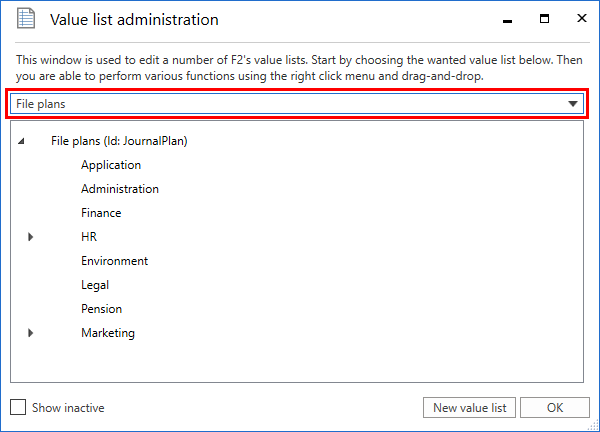
A file plan is managed as a value list in the "Value list administration" dialogue.
Click on Value list administration in the ribbon on the "Administrator" tab to open the dialogue.

At the top of the dialogue, select "File plans" in the drop-down menu. Here you can create and edit file plan codes.
Read more about value list administration.
Create file plan code
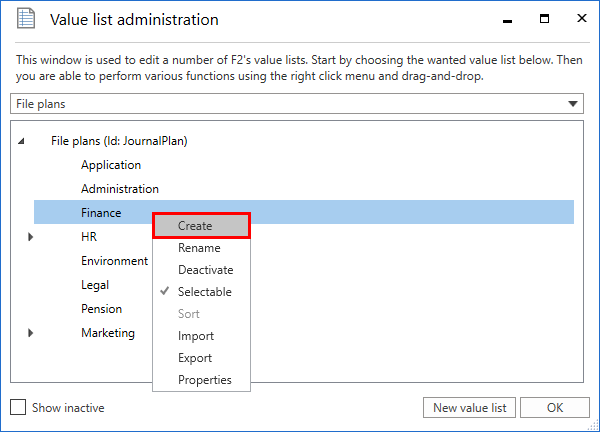
You can create file plan codes in several levels. File plan codes are created in the "Value list administration" dialogue. Select Create in the context menu of the "File plan" value list to create a file plan code at the top level. Select Create in the context menu of an existing file plan code to create a subordinate file plan code.
The dialogue "Creation of new file plan code" opens.
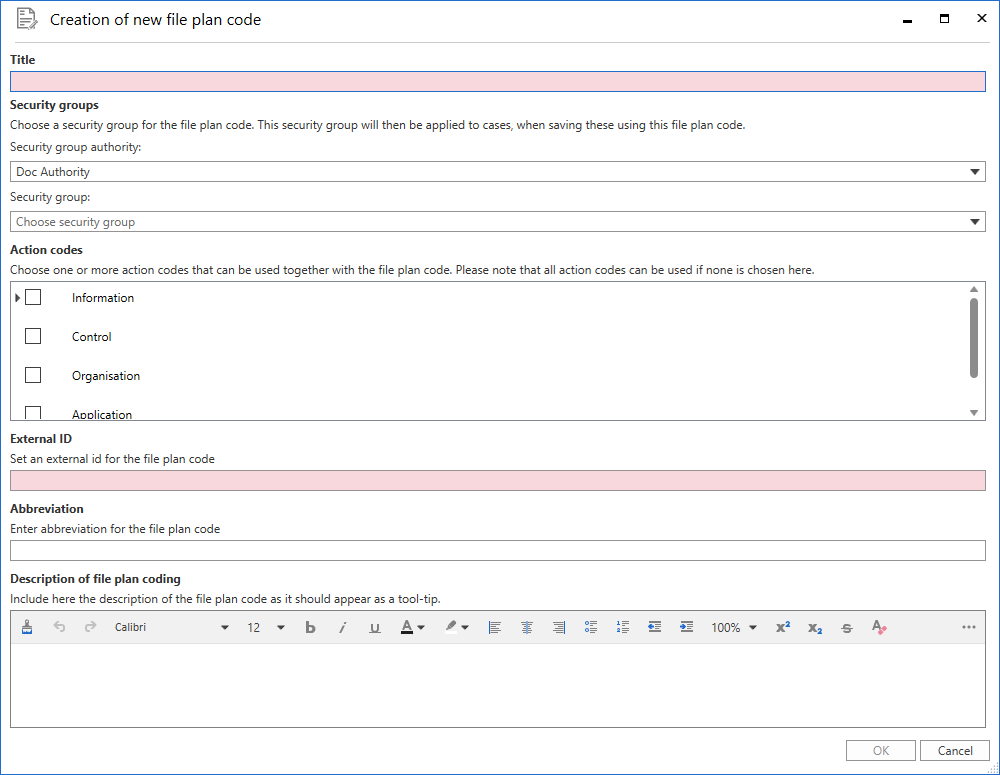
The fields in the dialogue are described in the table below.
| Field | Description |
|---|---|
Title |
Enter a title for the file plan code. This field is mandatory. |
Security groups |
Select a security group to associate with the file plan code. When the file plan code is added to a case, this security group will be added to the case’s access restriction.
|
Action codes |
Choose one or more action codes to associate with the file plan code. When the file plan code is added to a case, the associated file plan code(s) must also be added to the case. If you don’t specify any action codes for the file plan code, all action codes can be used. |
External ID |
F2 automatically suggests an external ID when you enter a title. This field is mandatory. |
Abbreviation |
Enter an abbreviation for the file plan code. |
Description of file plan coding |
Enter an optional description. The description will appear in a tooltip on the file plan code when it is added to a case. |
Click on OK at the bottom of the dialogue to create the file plan code with the information you have entered.
Edit file plan code
To edit a file plan code in the "Value list administration" dialogue, open its context menu and click on Properties.
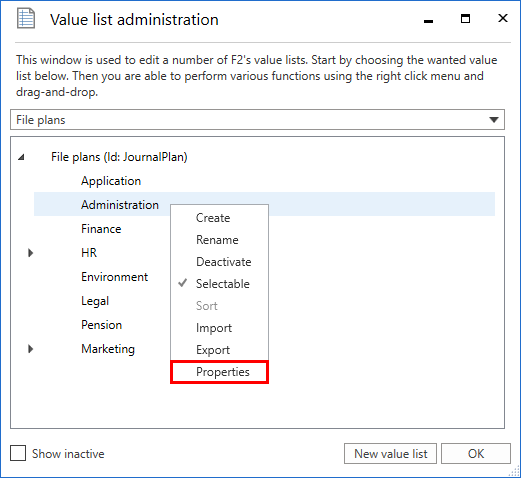
The dialogue "Administration of the properties for file plan code" opens. Here you can edit its fields. The fields are described in the section Create file plan code.