The "Quick access" toolbar
The "Quick access" toolbar is accessible from the upper left corner of the main, record, and case windows.
You can add your preferred menu items from the windows' ribbons to the toolbar. This lets you quickly access your most frequently used functions.
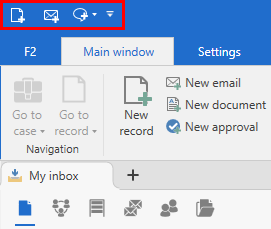
You can customise the toolbar from its drop-down menu or from the ribbon’s context menu. Additionally, you can customise it from the "Customise the toolbar, ribbon, and context menus" window, where you can also decide which menu items are displayed in the ribbon and in context menus.
| Press Alt to display numbers on the functions in the "Quick access" toolbar. These numbers, also called KeyTips, correspond to keyboard keys that activate the functions. Read more about KeyTips. |
| When a new version of F2 is released, the menu items in the main, record, and case windows may be affected. This means that you may need to re-establish functions you have added to the "Quick access" toolbar. |
Customise the "Quick access" toolbar from the drop-down menu
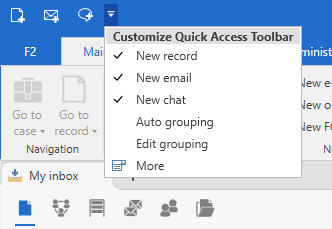
The "Quick access" toolbar is marked with a drop-down arrow icon  . Click the icon to open a list of suggested functions you can add to the toolbar. The suggestions vary depending on whether you open the drop-down menu from the main, record or case window.
Tick the menu items you want to add to the "Quick access" toolbar. Untick a menu item to remove it from the "Quick access" toolbar.
F2 shows a selection of menu items in the drop-down menu as illustrated by the figure below.
Customise the "Quick access" toolbar from the ribbon’s context menu
You can add a menu item to the "Quick access" toolbar directly from the ribbon. Right-click on a menu item in the ribbon, and select Add to Quick Access Toolbar in the context menu.
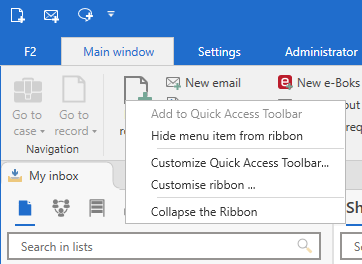
Menu items can also be accessed via keyboard navigation. For example, press Alt + M to go to the main window ribbon, and press Tab to navigate to the desired menu item. When a menu item is in focus, open its context menu using Shift + F10 and select Add to Quick Access Toolbar from there.
Customise the "Quick access" toolbar in the customisation window
Click on the toolbar’s drop-down arrow icon and then on More to open the customisation window. You can also open the customisation window via the ribbon’s context menu.
On the "Quick access" tab in the customisation window, you can add and remove individual menu items or groups of menu items.
At the top of the customisation window, select the tab in the main, record, or case window from which you want to choose menu items (1). You can search for menu items in the "Available menu items" search field (2). Deselected menu items are displayed on the left side of the window (3), while selected menu items are displayed on the right (4).
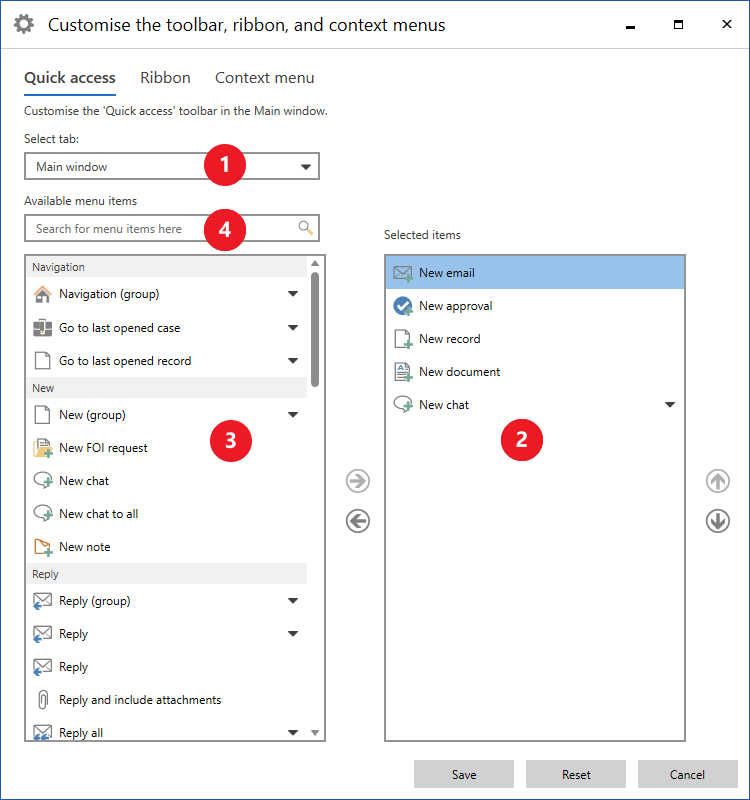
Select the menu items you want to add or remove. Click on the arrows in the middle of the window to move the menu items. You can also move a single menu item by double-clicking it. The changes take effect immediately, so you can see them while editing.
Click on Save to finish your customisation. Click Cancel to discard your changes and close the window. You can also reset your customisation.
| In the customisation window you can also add or remove menu items in the ribbon and context menus. Read more about customising the ribbon or context menus. |