Show search results
You can choose how you want to view search results in the result list. Adjust your view from the toolbar that is placed above the free-text search field. Here you can choose to show the result list as records, cases, documents, or requests.
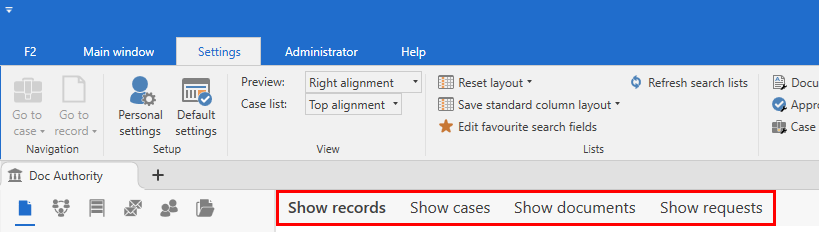
| All searches in F2 are based on records. This means that when you choose another view, the result list shows the cases, documents, or requests of the records that match the search criteria. A record with no relevant associated item will not be shown in the result list. For example, records without a case association will not appear when the result list shows cases. |
Show records
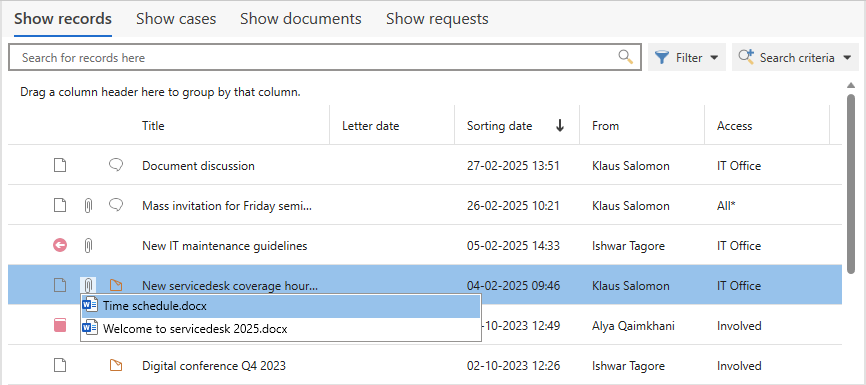
Select Show records to view your search results as records.
You can view any attached documents by clicking on the paperclip icon  as shown below.
Show cases
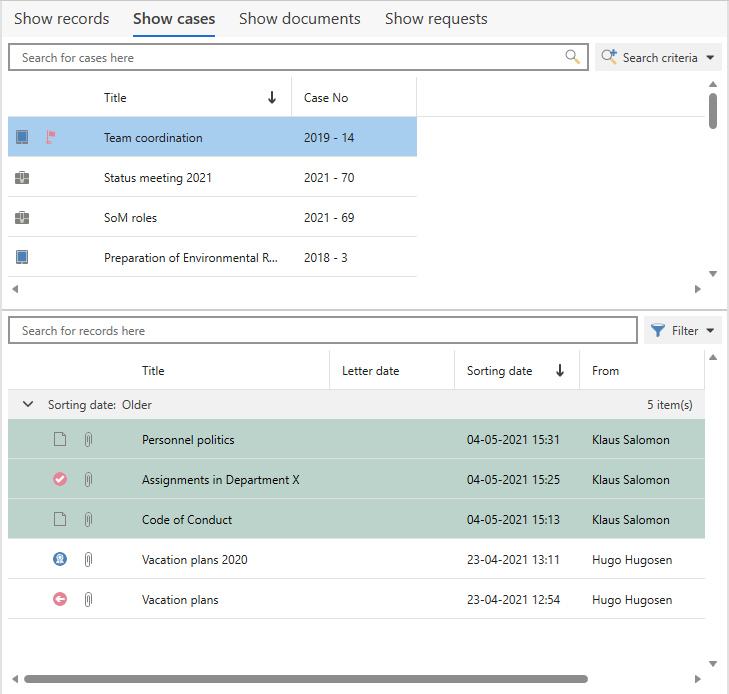
Select Show cases to view your search results as cases. The list consists of cases that are associated with records that match the search criteria.
The records of a selected case are shown in the record list either to the right of or below the case list as shown below. When viewing cases, you cannot see records without a case association.
| If you choose this view in "My inbox", you will not see new emails imported to F2. The only exception is emails that are already associated with a case. |
The selected case’s list of records have a separate free-text search field. This allows for filtering in the same manner as when the result list shows records. Read more about filtering your search results and the "Filter" button.
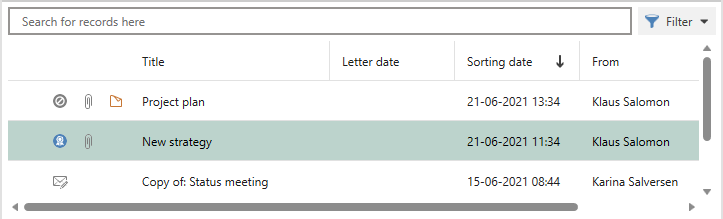
Additionally, F2 highlights the records on the case which match the active search criteria of the selected list. In this example, one of the records is highlighted despite the free-text search field having no active search criteria. The record is highlighted because it is located in "My desktop", the list in which the case was found. Records with a white background are attached to the case, but do not match the selected list.
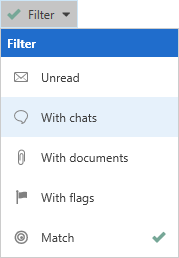
The "Filter" button in the case view
The Filter button is found to the right of the record list when a case is selected.
You can filter the case’s records by "Unread", "With chats", "With documents", "With flags", and by "Match". Select "Match" to only see the records that match the list’s search criteria.
Show documents
Select Show documents to view documents in the result list. The list consists of documents that are associated with records that match the search criteria. If a record has several attached documents, the record appears multiple times on the list as each document is displayed on its own line.
A padlock icon  is displayed next to a locked document. A locked document cannot be edited. A document may be locked if it is attached to an email or if the responsible user has locked the document to prevent it from being updated.
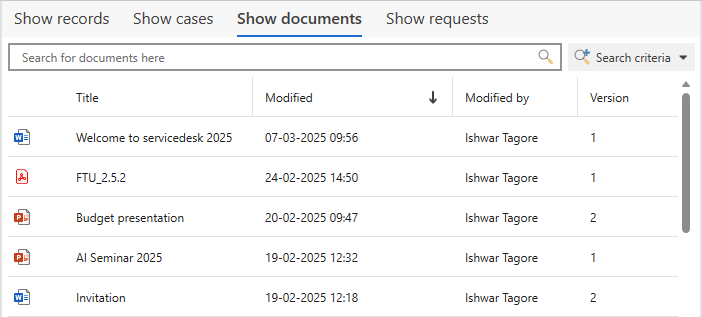
Double-click on a document to open it.
The result list shows all documents attached to records matching the search criteria. If a record has multiple documents attached, they will all be displayed as long as at least one matches the search criteria. This is because F2’s free-text search is based on records, and a document’s contents, title, and external ID are considered parts of its record.
Show requests
Select Show requests to view your search results as requests. The list consists of requests that are associated with records that match the search criteria. If a record has several requests, the record appears multiple times on the list as each request is displayed on its own line.
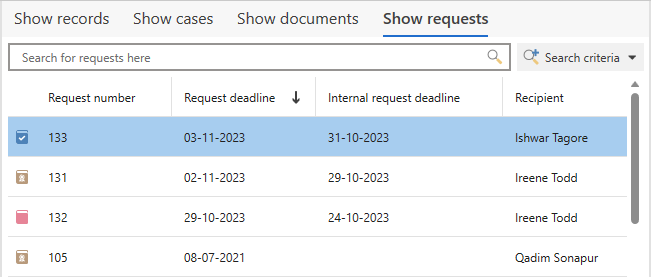
Double-click on a request to open its record.
The list shows all requests associated with records that match the search criteria. If a record has one request that matches the search criteria, all requests of that record are displayed. The reason is that a search in F2 always begins with a record, and request recipients, types, and deadlines are considered elements thereof.