Accessibility settings in F2
You can increase F2’s accessibility using certain settings in the "Personal settings" dialogue. To open the dialogue, click on Personal settings on the "Settings" tab in the main window.
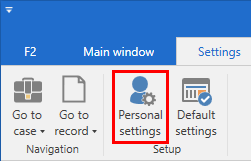
Accessibility settings appear on the "General" tab.
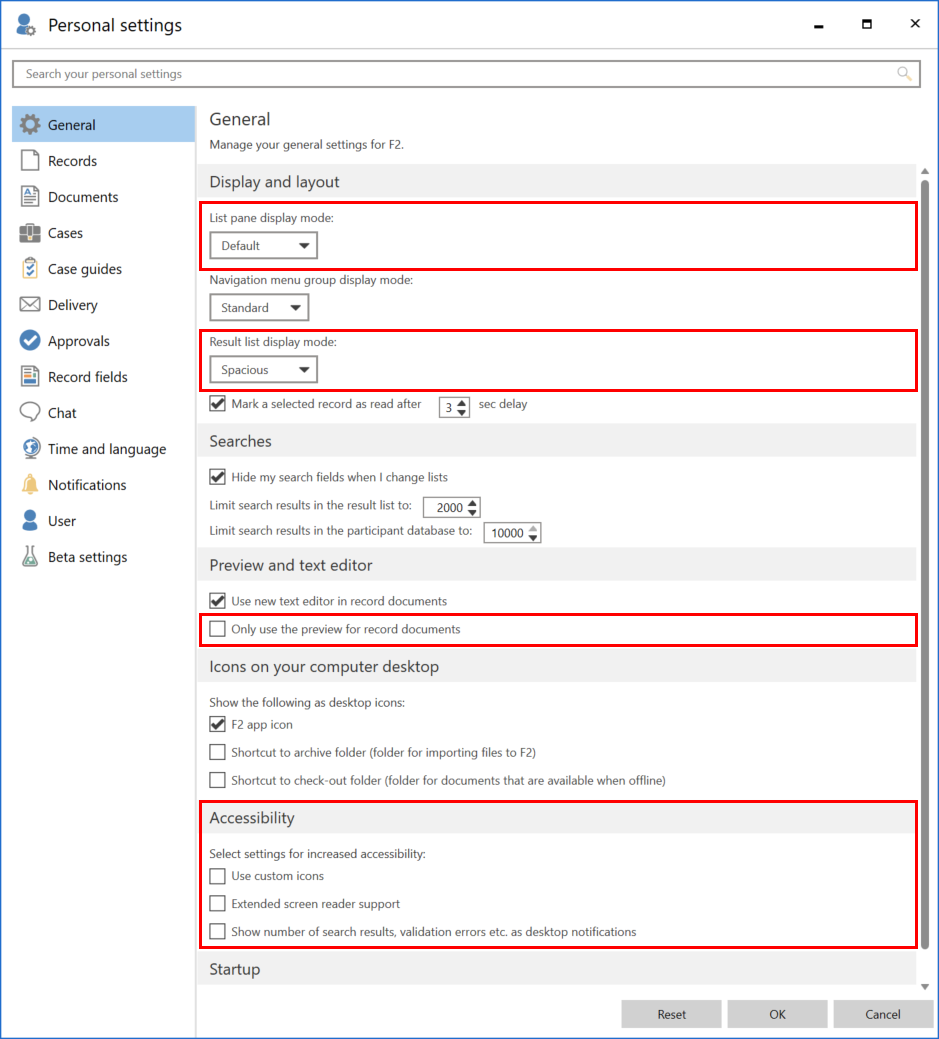
The accessibility settings are described in the table below.
| Setting | Description | ||
|---|---|---|---|
Display and layout |
|||
List pane display mode |
Choose how the main window list pane displays searches and lists. Options include:
The "Spacious" and "Default" options are more accessible. |
||
Result list display mode |
Choose how to display result lists. Options include:
The "Spacious" and "Default" options are more accessible. |
||
Result list font size |
Select the size of text in the result list. You can choose between font sizes of 12, 14, 16, and 18. |
||
Editor text zoom |
Select a default zoom level for record documents, approval documents, and system messages. You can choose between seven different zoom levels ranging from 50% up to 300%. |
||
Number of seconds a tooltip is displayed |
Select how many seconds a tooltip is visible when you hover over a menu item or another element in F2. |
||
Number of milliseconds before a tooltip appears |
Select number of milliseconds before a tooltip is displayed after placing your cursor on a menu item or another element in F2. |
||
Preview |
|||
Only use the preview for record documents |
Tick this box if you are using a screen reader and want to avoid delays when navigating between the attached documents in the document area. If the feature is enabled, click on Show preview in the middle of the preview to display a preview of the record’s attached documents. |
||
Accessibility |
|||
Use custom icons |
Custom icons must be configured in cooperation with cBrain in order for this checkbox to function.
|
||
Extended screen reader support |
Tick the box to better support the use of a screen reader in F2. The setting deactivates a number of animations in F2, for example in the "F2" menu as well as spinners that appear during loading, to execute keyboard navigation faster. F2 must be restarted for the changes to take effect. |
||
Show number of search results, validation errors etc. as desktop notifications |
Tick this box to enable notifications. The notifications offer information regarding searches, warning icons, and validation errors such as invalid values when entering an email address, etc. Notifications are delivered as Windows notifications to support better accessibility in F2 and are shown at the bottom of the screen. 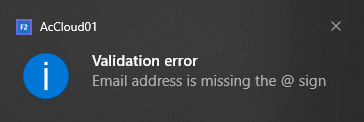
Figure 3. Example of Windows notification
F2 must be restarted for the changes to take effect.
|
||
