Work with search results
When you perform a search in F2, the search results are displayed in a result list.
You can customise the result list’s columns, switch between views, and sort the results, as well as save your searches for later use.
The result list
Search results are displayed in the result list in F2’s main window. The result list consists of all records that match the list’s search criteria. The list can be displayed as either records or their cases, documents, or requests.
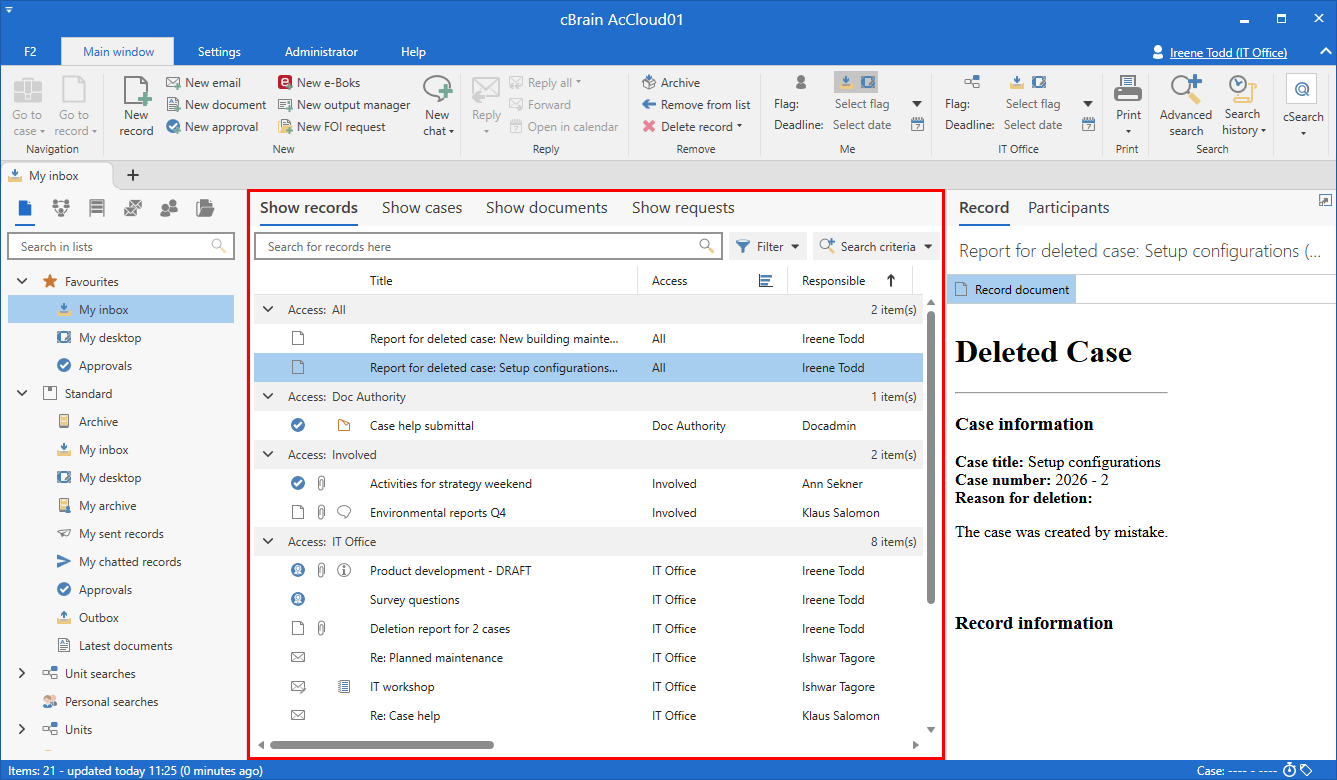
In your personal settings, you can limit the amount of search results to display. If you set this number to 300, for example, a maximum of 300 records will be displayed in the result list.
| The result list may contain more columns than your screen has room to display. You can view the hidden columns by scrolling horizontally. You can do this either via the result list’s scrollbar or by holding down the Shift key and using the mouse wheel. |
Change result list views
You can change how search results are displayed in the result list. Results are shown as records by default, but they can also be shown as cases, documents, or requests.
Viewing actions include:
-
See another view of the same search results.
-
Gain an overview across cases or focus on individual documents.
-
Customise the view to your current task.
Read more about the different views.
Sort the result List
You can sort your search results directly in the result list to gain a better overview and quickly find the most relevant search results.
Use the result list columns for sorting. The columns can be customised.
Sorting actions include:
-
Sort by a single column (such as date or title).
-
Sort by two columns simultaneously.
-
Change the sorting direction (ascending/descending).
Sorting is particularly useful when working with many results or when you want to identify the newest or most relevant results.
Read more about sorting results.
Set up the result list’s columns
You can set up the columns in the result list to suit your current task and need for information.
By adding relevant columns and adjusting their order, you can create a better overview of your search results.
Column actions include:
-
Add or remove result list columns.
-
Change the column order.
-
Adjust the column width.
Read more about setting up your columns.
Save your searches
You can save your searches to easily find and continue working with the search results later.
Saved searches are lists and therefore dynamic. This means that new records and cases that meet the search criteria are automatically added to the list when you open it.
Saved search actions include:
-
Save a personal search with your chosen criteria.
-
View personal searches.
-
Delete or rename personal searches.
Personal saved searches can for example be used to create lists of the cases, keywords, or flags that you use most often or that you need to keep an overview of.
Read more about how to save your searches.