Cases
In F2 cases are used to compile records concerning a single subject, area, or situation. Cases help you create an overview and find your own work and the work of others. You can attach a record to a case either when creating a record or during your work on the record. A case is always created based on a record.
Here you can read about cases in F2. You can learn how to create a case, how to use the case window ribbon, and how to work with the case metadata.
You can restrict access to a case. Read more about managing read and write access to a given case and its records in Access control.
The case window layout
You can access the case window in several ways. For example, you can double-click a case in the result list or select Open case in the context menu of a record. The case number and title are displayed at the top of the case window.
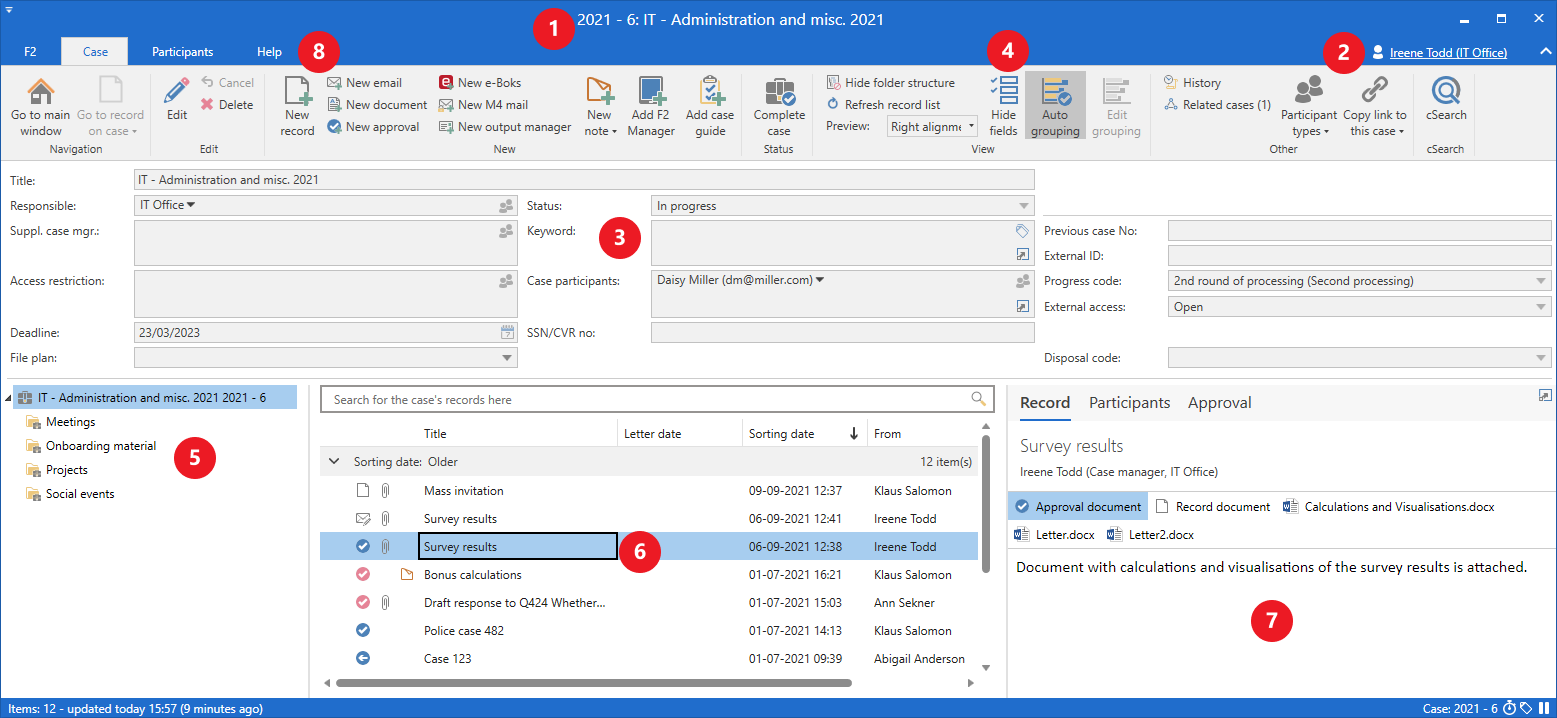
The case window consists of five elements:
-
The ribbon, where the "Case" tab is the primary tab. The ribbon contains menu items for communication and case processing. Read more about the other case tabs.
-
The case metadata, such as case title, the user or unit responsible for the case, and case status. By default, F2 displays the simple case view. Click Show more fields in the ribbon to display the extended case view.
-
Case folders. You can create any number of case subfolders for organising the case records.
-
The result list showing the records attached to the case. You can edit the result list’s column layout as needed.
-
A preview of the record you have selected in the result list. The preview can be hidden.
Other case tabs
In addition to the case tab, the case window contains the following tabs:
-
"Participants" lists the participants involved on the case. The tab offers the same functions as the corresponding tab in the record window.
-
"FOI Request"/"F2 Manager"/"Case guide" are shown, if they are available in your F2 installation.
-
"Help" lets you access F2’s help functions, which include short articles on using F2 and links to in-depth articles here on F2 Docs.
-
"F2" lets you access a number functions, such as document recovery.