Value lists
Value lists are lists that apply to all authorities in an organisation. Each value list represents a group of standardised texts used in connection with different tasks.
An example of a value list is the request types, which may contain text strings such as:
-
Office reply
-
Report
-
Alert
-
For information.
An organisation’s keywords and participant types (documentation available in Danish) are also managed using value lists.
| A value list can be used as the basis of data in extension fields. The external ID of the value list items are used as the storage value in F2, which means that when a value list item is updated, it is also updated on records and cases where it is already in use. This enables users to search for records and cases using the current value of the value list item. Configurations are performed in cooperation with cBrain. |
Value list administration
As a standard, value lists are created in connection with the F2 installation and maintained in the “Value list administration” dialogue by users with the "Value list administrator" privilege.
To open the "Value list administration" dialogue, click on Value list administration in the ribbon on the “Administrator” tab.

Click on the drop-down arrow in the dialogue to select one of F2’s value lists.
The figure below shows examples of value lists that are available in an F2 installation.
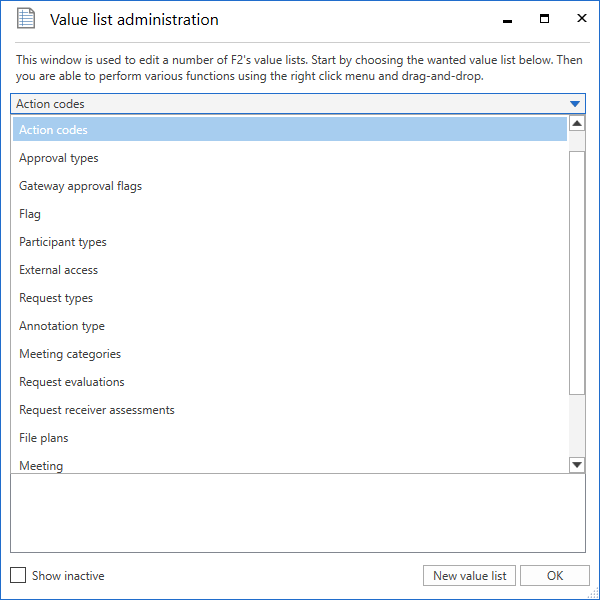
The list varies depending on the available modules.
Once a list is chosen, its values are displayed in the window. Values are created as sub-items for each list.
Value list context menu
In the "Value list administration" dialogue, right-click on a value list to access the options described below.
| Function | Description |
|---|---|
Create |
Create a new value list item. |
Rename |
Rename the value list. |
Sort |
Sort the items in the value list. Read more about sorting value lists. |
Check for inconsistent deactivation |
Check if there are inactive value list items with sub-items that are active. |
Import |
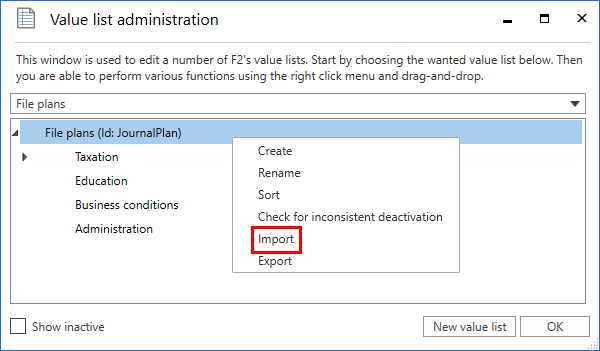
Import the value list as an xml file. Read more about importing value list items. |
Export |
Export the value list as an xml file. |
Value list item context menu
In the "Value list administration" dialogue, right-click on an item to access the options described below.
| Function | Description | ||
|---|---|---|---|
Create |
Create a new item under the selected item. |
||
Rename |
Rename the item. |
||
Deactivate |
Deactivate the item.
|
||
Activate |
Activate the item. This context menu item is only visible if the item is deactivated. Deactivated items can be displayed by ticking the "Show inactive" checkbox at the bottom of the "Value list administration" dialogue. |
||
Selectable |
Tick "selectable" to make the item selectable. Untick "Selectable" to make the item visible but not selectable. Non-selectable items are used as titles for value list nodes that have sublevels, such as file plans. |
||
Sort |
Sort the items at the selected level. Read more about sorting value lists. |
||
Import |
Import items as an xml file. Read more about importing value list items. |
||
Export |
Export items as an xml file. |
||
Properties |
Edit the properties for the item. |
| Depending on the type of value list, some functions may not be available. |
Sort value lists
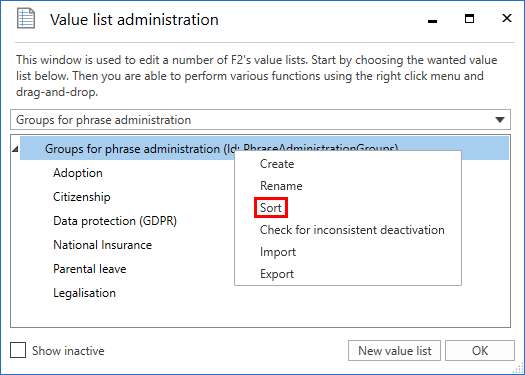
In the “Value list administration” dialogue it is possible to sort value list items on any level alphabetically. Right-click on a list, and select Sort in the context menu. F2 then sorts the selected list alphabetically. Only the selected level will be sorted. Any sublevels will not be affected.
Create a new value list
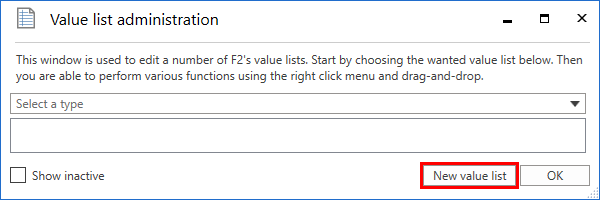
Users with the “Value list administrator” privilege can create new value lists in the “Value list administration” dialogue. Open the dialogue and click on New value list.
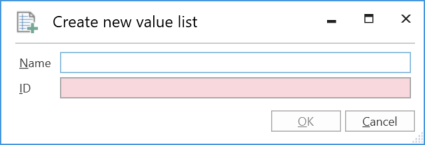
In the “Create new value list” dialogue, enter the value list’s name and ID.
| New value lists will most likely be created in connection with the modules F2 Management Dashboards, F2 Search Templates, and F2 Task Guides. For these modules the value list ID is used in connection with the customisation of F2. |
Value list items
Users with the “Value list administrator” privilege can import value list items via an XML file or create them directly in F2. Each value list item is defined from certain parameters which vary depending on the type of list. Three obligatory parameters exist which are shared by all value lists:
-
Type
-
Name
-
External ID.
These are described in detail in the table below.
| Parameter | XML code | Description |
|---|---|---|
Type |
TypeId |
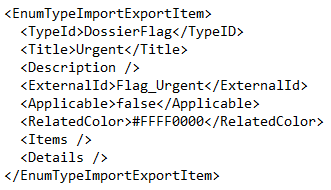
Denotes the value list to which the item belongs. Example: “Flag”. |
Name |
Title |
The name of the value list item determined by its creator. Example: “Urgent”. |
External ID |
ExternalId |
An ID that must be unique for each value list item. Example: “Flag_Urgent”. |
The figure below shows an example of a value list item’s XML code, in this case the code for the “Urgent” flag.
Import a value list item to F2
Value list items can be imported to F2 via an XML file. Depending on the file’s content, existing value list items in F2 will be either moved or updated, and any new items will be created.
Click the Value list administration menu item on the “Administrator” tab. The “Value list administration” dialogue opens. Choose a list from the Select a type drop-down menu.
Right-click on the top node in the list and select Import from the context menu. On the figure below, the "File plans" value list is selected.
Before F2 imports the file with value list items, a message is displayed informing the user of the effects of the import.
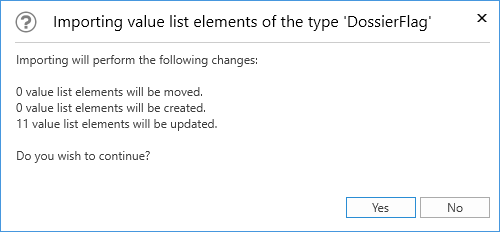
Click Yes to execute the import and have F2 move, create, and update the value list items based on the content of the imported file.
| Files with value list items must be in XML format and contain the correct formatting. The formatting appears in F2’s existing value lists which can be exported and then accessed in a programme compatible with XML files. |
Create a value list item in F2
You can create value list items in F2 by clicking Value list administration on the “Administrator” tab. The dialogue “Value list administration” opens from which a list can be selected from the Select a type drop-down menu.
The name of the selected list type and any items that already exist are then displayed. Right-click on the list’s name and select Create to open the “Create value list element” dialogue. On the figure below, the dialogue has been opened from the “Flag” value list.
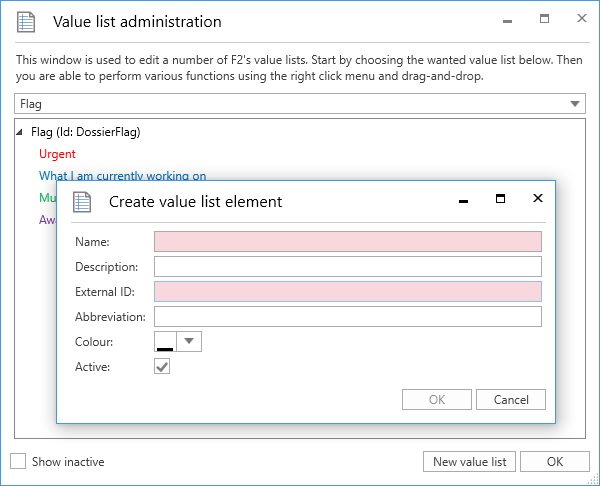
Enter a name for the new value list item. F2 automatically suggests an external ID when a name has been entered. For example, a new flag with the name “Urgent” will be assigned the external ID “Flag_Urgent”. However, the user may overwrite the suggested external ID.
| A system cannot have two value list items with the same external ID. Each value list item must have a unique external ID. |
In this dialogue you can add a description and an abbreviation to the value list item if necessary. In order to use the item, tick the “Active” box.
The above figure contains an additional field, “Colour”. This field is specific to the “Flag” value list. Use this to select a colour for the newly created flag. Other value lists may have fields that are specific to them also.