Edit approval process
| The content of this website is last updated to F2 version 13. cBrain are working hard on supplying you with the newest documentation of F2. In the meantime you can read about the latest features and changes in our release notes. |
You can edit an active approval process from the "Approval" tab in the "Edit" menu group.
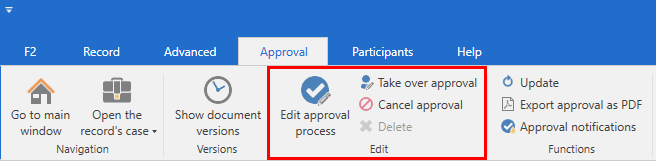
You can edit an approval process, take over an approval, and cancel, reopen, or delete an approval process.
| If the approval record has an access restriction, and you add approvers who are not already part of it, F2 asks whether you want to add the approvers to the record’s access restriction. |
Edit the approval process
You can edit both the steps and the metadata of an ongoing approval process. You cannot edit steps that have already been processed.
| Only users with write access to the record can edit the approval process. |
Click on Edit approval process in the "Approval" tab to open the dialogue “Edit approval process for [name of approval record]”.
The dialogue shows the entire approval process. Since the first step has already been processed, it can no longer be edited. The step is therefore greyed out.
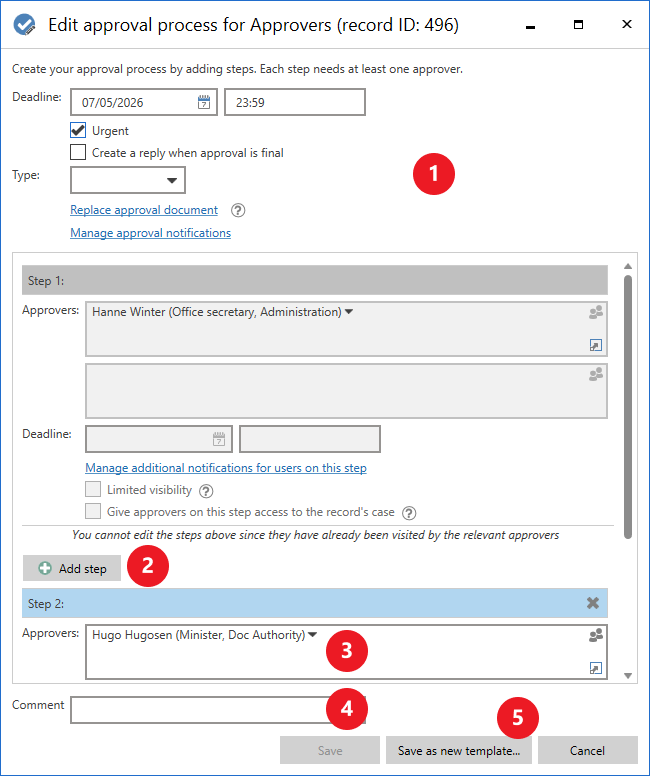
The dialogue gives you the following options:
-
You can change the approval’s metadata, such as deadline and type. Read more about the different fields in an approval process.
-
You can add new approval steps to the approval process. An approval process can contain an unlimited number of steps.
-
You can add multiple approvers or replace approvers on existing steps where the approval has not been processed.
-
You can write a comment, which will appear in the activity log. The activity log does not show what was changed, so consider explaining the reason for the change.
-
You can save the approval as a new template, so you can use it in other approval processes.
Click on Save in the dialogue to save your changes.
Take over an approval
Taking over an approval is useful if an approver is absent or ill. The approver can then be removed from the approval process or replaced with another approver.
| Only users with full write access to the record can take over the approval. |
Click on Take over approval in the "Approval" tab to open the "Take over approval" dialogue.
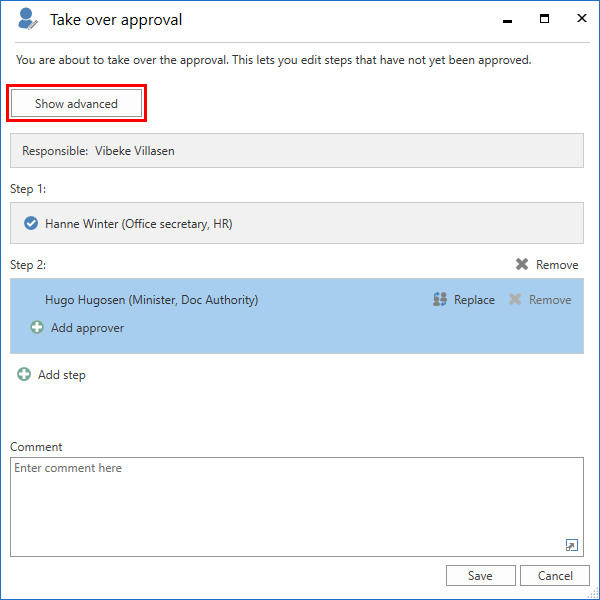
The dialogue shows the entire approval process. The first field is the responsible user who created the approval, and the following fields denote the different steps. The blue field is the active step. This example shows a process in which no steps have yet been approved, so all approvers and steps can still be changed.
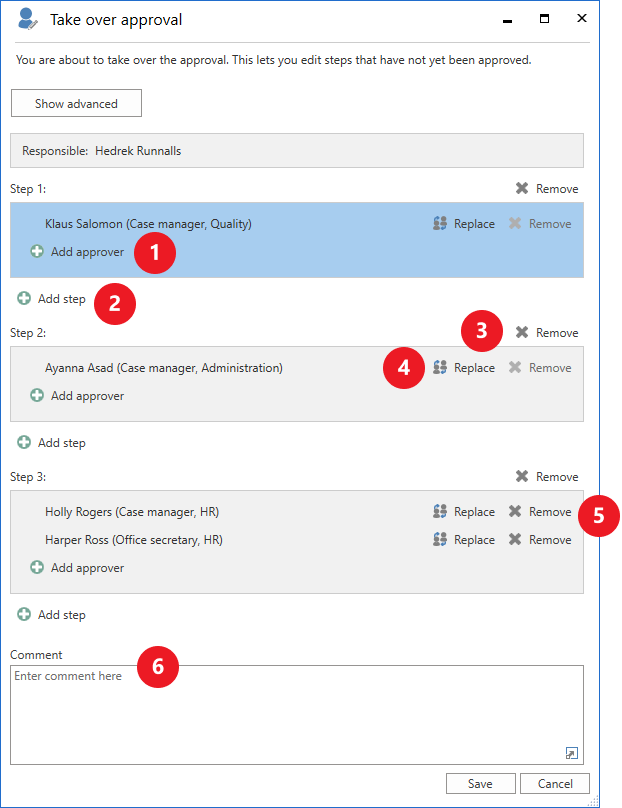
You have the following options in the dialogue:
-
Add approvers to active and subsequent steps.
-
Add steps after the active step and subsequent steps. An approval process can contain an unlimited number of steps.
-
Remove approval steps.
-
Remove approvers if the step has more than one approver.
-
Enter a comment, which will appear in the activity log. The activity log only shows who performed the action and on which step, so consider explaining the reason for the change.
Click Save in the "Take over approval" dialogue to save your changes. F2 asks for confirmation before saving.
| Approvers who have approved, or steps that have been approved, cannot be removed or replaced. |
Add or replace approver
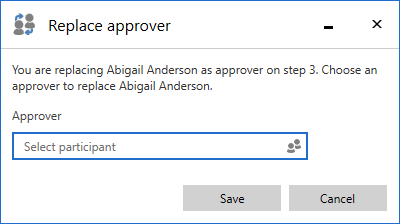
When you click on Add approver, Add step, or Replace in the "Take over approval" dialogue, a dialogue opens where you can select a new approver from the participant register. You can enter the participant’s name or click on the participant icon to select a participant. Click on Save to add the selected participant to the approval.
Advanced options in the "Take over approval" dialogue
The "Show advanced" button can be displayed at the top of the "Take over approval" dialogue.
The button lets you change a step’s deadline and specify copy recipients directly in the dialogue.
| The "Show advanced" button is enabled through a configuration. F2 is configured in cooperation with cBrain. |
Click on the Show advanced button to view the advanced options.
Click on Add copy recipient to add a copy recipient at the selected step. You can also change the step’s deadline in the "Deadline" field.
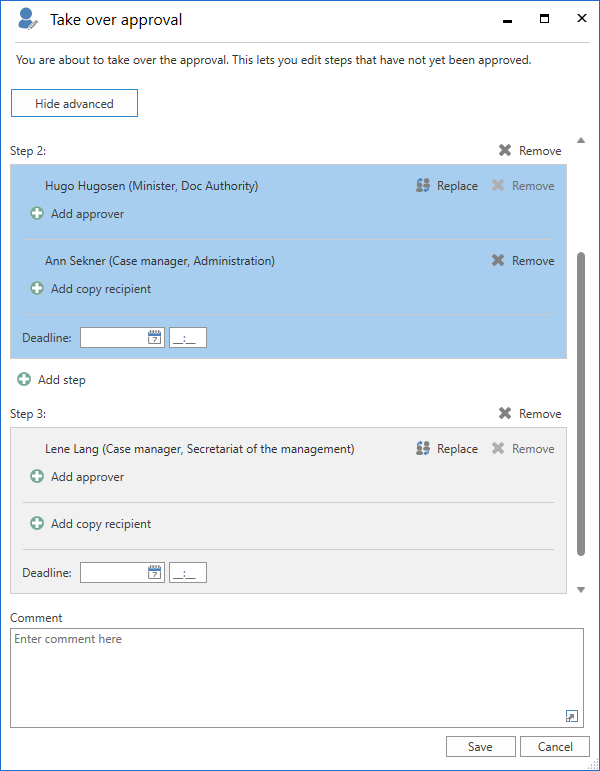
Click on Save to save your changes.
You can hide the advanced options again by clicking on Hide advanced.
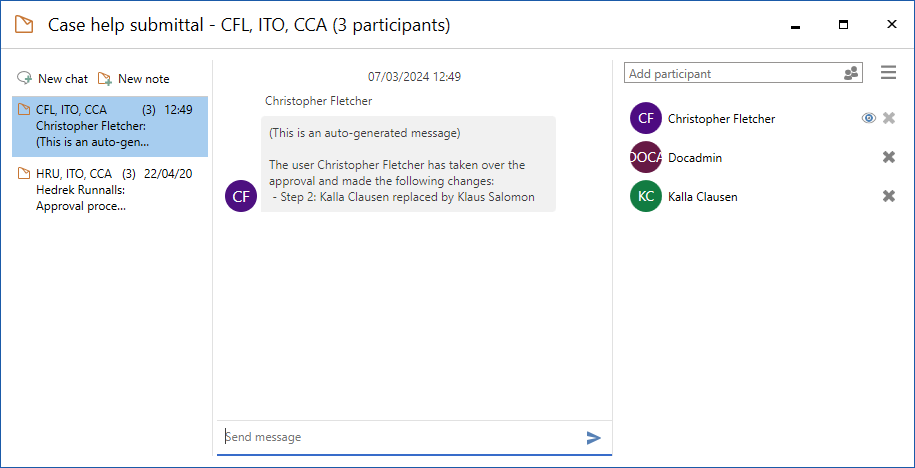
Automatic note about approval changes
F2 creates a note on the approval record when changes are made via "Take over approval".
The note describes the action performed. Participants on the note include:
-
The user who has taken over the approval and made changes.
-
The user responsible for the approval.
-
Approvers who have been removed from or replaced in the approval.
Restart approval
An approval can be restarted from the “Take over approval” dialogue, but only if it has been returned with the recommended actions “Return and resume with me” or “Return and resume after me”. Users can only restart an approval if they have full write access to its record.
Restarting the approval makes it possible to add steps, or add, replace, or remove approvers in the entire approval process, not just the step of the returner.
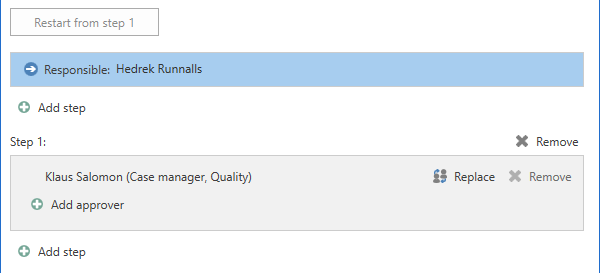
If the returner has selected “Return and resume with me” or “Return and resume after me”, the Restart from step X button becomes visible in the dialogue. “X” corresponds to the step after the step to which the approval was returned. The figure below shows the button with the text “Restart from step 1” because the approval was returned to the responsible user, i.e. to the step before step 1.
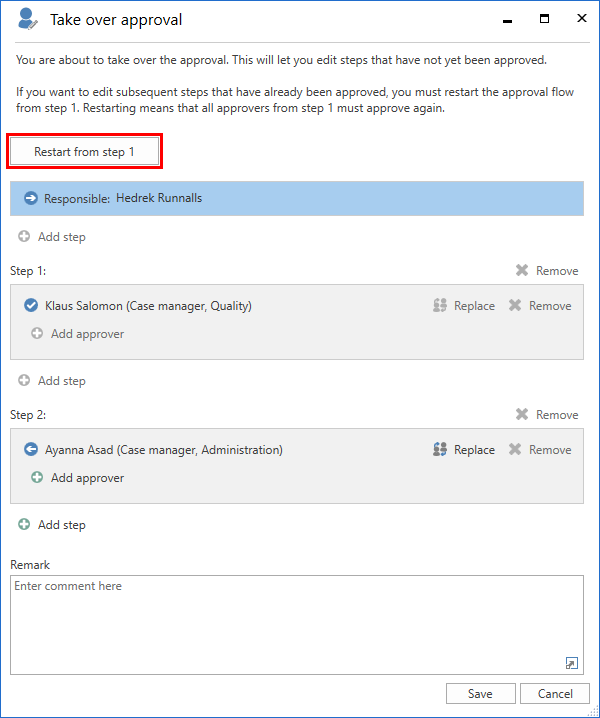
Click Restart from step X to edit already approved steps, including the step from which the approval was returned. New steps can be added before and between existing steps.
You cannot remove the step from which the approval was returned, but its approvers can be replaced.
The figure below illustrates some of the options available when restarting an approval.
| The restart completely resets all prior approvals. This means that early approvers may have to reapprove if they are not replaced or removed. |
Cancel approval
Click on Cancel on the "Approval" tab to cancel an ongoing approval process. The "Cancel approval" dialogue opens, where you can select the users to be added to the automatically generated note stating that the approval has been cancelled. The selected users receive the record in their inbox informing them that the approval has been cancelled.
The note can also be viewed on the approval record by anyone with access to the record.
| Only users with full write access to the record can cancel the approval process. |
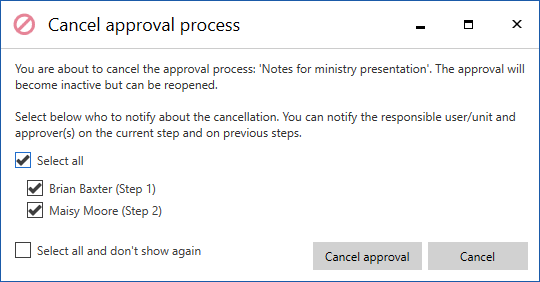
If you do not want to decide every time you cancel an approval, you can opt out of the dialogue in your personal settings. In this instance, everyone involved in the approval are automatically notified. The involved users include:
-
The user who cancelled the approval.
-
The user who is responsible for the approval record.
-
Any approvers who have already approved or returned the approval.
When an approval is cancelled, it is removed from the list of active approvals.
| You can search for cancelled approvals. Read more about creating specific searches for approvals. |
Reopen approval
Cancelled approvals are inactive but can be reopened. The approval record still exists and the created approval process still appears on the record. Therefore, it is possible to reopen an approval and continue on the approval step where it was cancelled.
| Only users with full write access to the record can reopen the approval process. |
Click on Reopen on the "Approval" tab to reactivate an approval and resume the approval process. The "Reopen approval process" dialogue opens, where you can select the users to be added to the automatically generated note stating that the approval has been reopened. The selected users receive the record in their inbox informing them that the approval has been reopened.
The note can also be viewed on the approval record by anyone with access to the record.
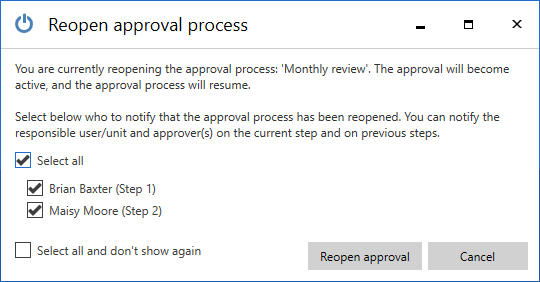
If you do not want to decide every time you reopen an approval, you can opt out of the dialogue in your personal settings. In this instance, everyone involved in the approval are automatically notified. The involved users include:
-
The user who reopened the approval.
-
The user who is responsible for the approval record.
-
Any approvers who have already approved or returned the approval.
Delete approval
Approvals must be cancelled before they can be deleted. Click on Delete on the "Approval" tab to delete a cancelled approval.
| Only users with full write access to the record can delete the approval process. |
F2 will ask for confirmation before deleting the approval. The deletion cannot be undone.
When an approval is deleted, the approval record becomes an ordinary record. Any documents, the record document, and other metadata are preserved, but not the approval document. If needed, you can create a new approval on the record.