Document templates
| The content of this website is last updated to F2 version 13. cBrain are working hard on supplying you with the newest documentation of F2. In the meantime you can read about the latest features and changes in our release notes. |
In F2, you can choose to include a document on the record that is automatically created upon final approval of an approval process. Open the document’s properties from the context menu in the document area of the record window. The record must be in edit mode. Tick the box “Include upon reply creation when approval is final” in the document properties, and click Save.
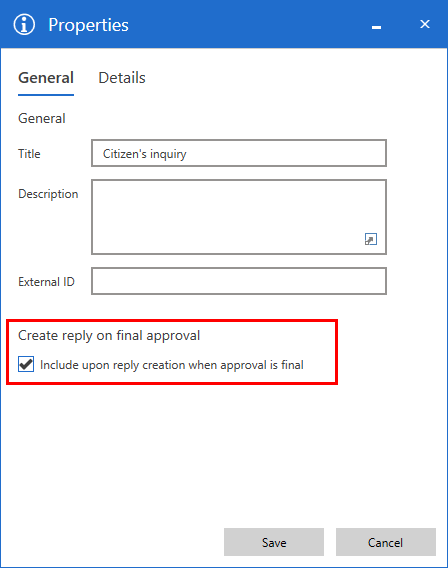
You can also set up a document template to be included on the automatically created record.
Set up document template
All users can create personal document templates for their daily work. Furthermore, users with the “Template administrator” privilege can create templates available as standard documents for the entire organisation or specific authorities or units.
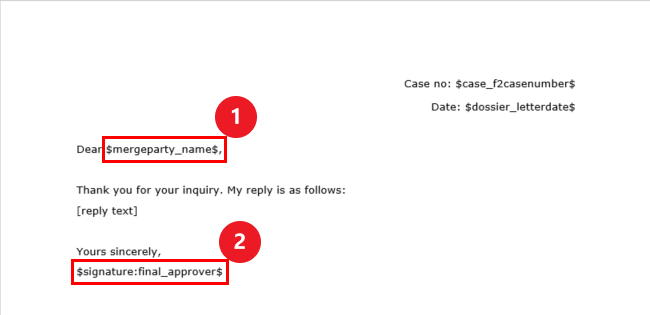
Create a document template in a Word document outside F2. Insert the relevant merge codes and phrases, including the signature phrase, into the document. Insert the signature phrase with the correct syntax: $signature:final_approver$.
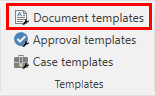
Next, import the document template into F2. Click Document templates on the “Settings” tab to open the “Document templates” window.
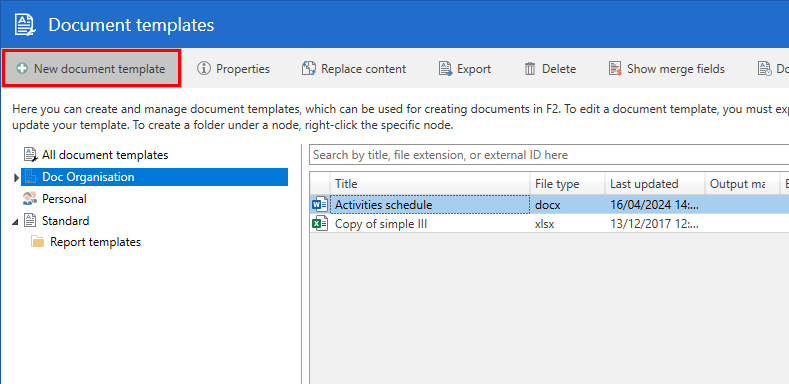
In the “Document templates” window, select the folder or unit in which you wish to place the template. Click New document template in the window ribbon.
In the “New template” dialogue, click Browse… to import the document template from outside F2.
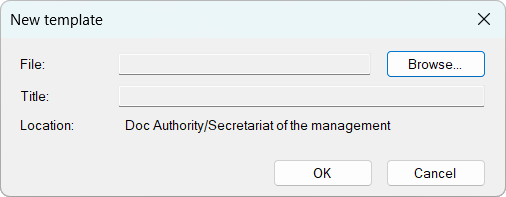
Give the template a title and click OK.
Next, configure F2 to include the document template on the automatically created record upon final approval. Select the relevant template in the overview, and click Properties in the window ribbon.
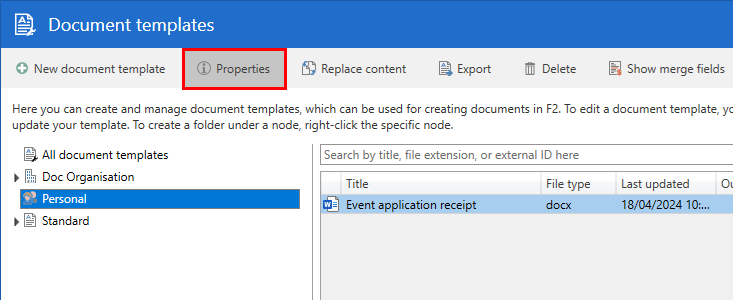
The “Properties” dialogue opens. Tick the box “Include upon reply creation when approval is final” and click Save.
Read more about document template creation and editing.