Approval process
| The content of this website is last updated to F2 version 13. cBrain are working hard on supplying you with the newest documentation of F2. In the meantime you can read about the latest features and changes in our release notes. |
F2 can create a new record upon final approval. F2 copies the selected documents from the original approval record to the new record and merges the signature phrases in the documents. You can enable this function using the checkbox “Create a reply when approval is final” in the “New approval” or “Edit approval process” dialogues. You can tick the box when creating the approval or later, before final approval.
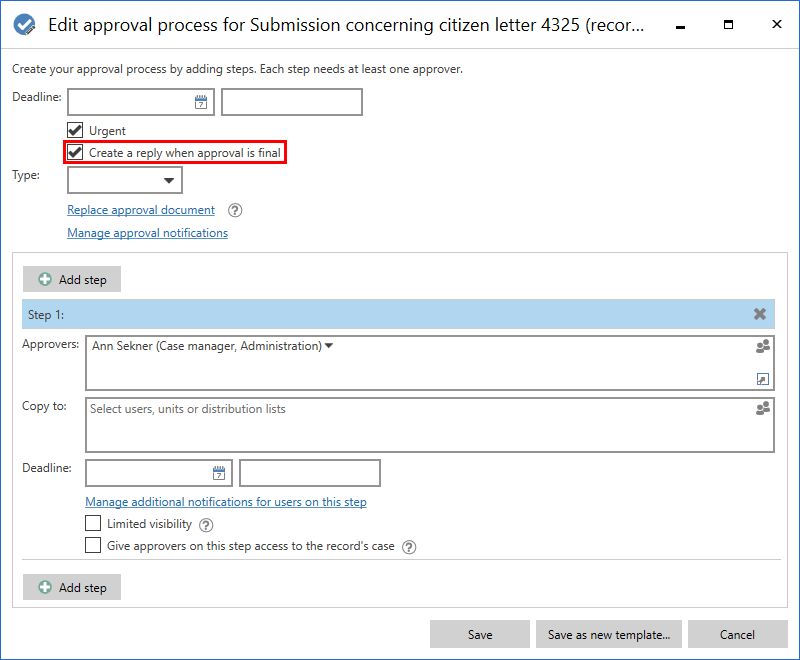
Read more about setting up approval processes.
| F2 can be configured to automatically merge signature phrases upon final approval. F2 is configured in cooperation with cBrain. |
Set up approval template
Regularly used approval processes can be saved as approval templates.
Two types of templates exist:
-
Personal approval templates: The individual user creates these templates and is the only user who can view and access them.
-
Shared approval templates: These templates are available to the entire organisation or selected units. A user with the “Template administrator” privilege can create shared approval templates and determines who can view and access them.
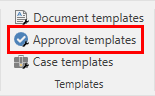
Open the “Approval templates” dialogue from the “Settings” tab to create a new shared approval template.
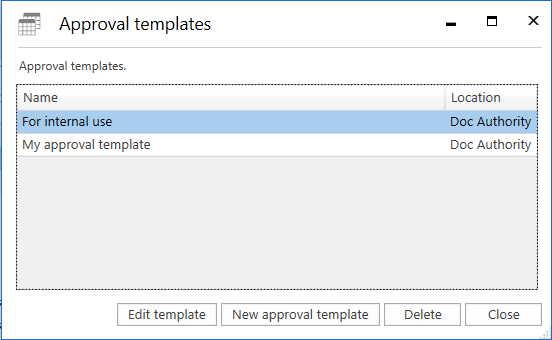
Click New approval template in the “Approval templates” dialogue.
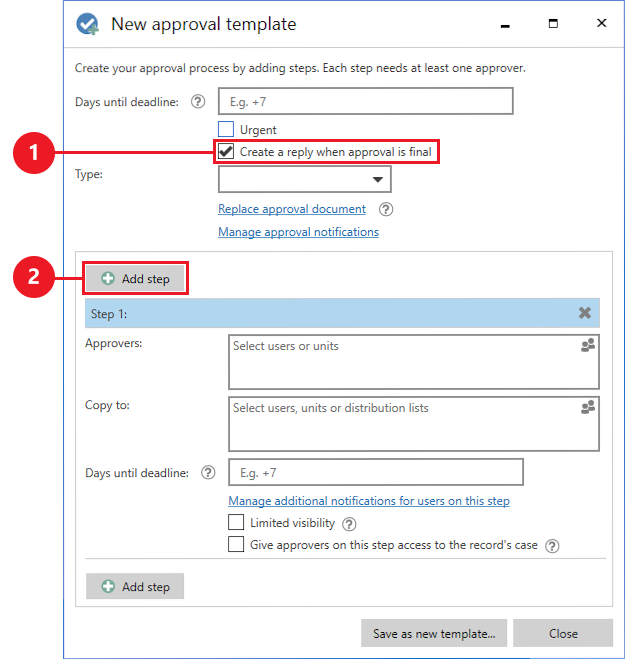
In the “New approval template” dialogue, tick the box “Create a reply when approval is final” (1) to automatically create a reply record upon final approval. Click Add step (2) to add the steps that make up the approval process.
Click Save as new template. The “Save as template” dialogue opens. Name the approval template. Tick the “Template placement” box to make the template available to all users in the authority or a certain unit (select the authority or unit).
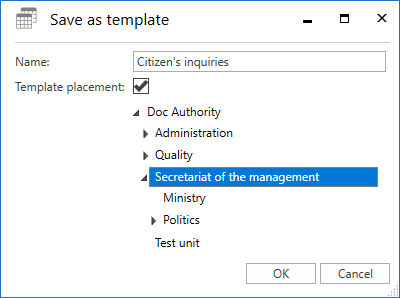
Click OK to save the approval template.