Signature phrases
| The content of this website is last updated to F2 version 13. cBrain are working hard on supplying you with the newest documentation of F2. In the meantime you can read about the latest features and changes in our release notes. |
A signature phrase is included in a document template along with any other phrases or merge codes to be used.
The syntax for signature phrases in document templates follows a fixed format. The code begins and ends with a “$” and must contain the word “signature” followed by the name of the signature phrase that F2 should merge. Separate the two elements of the code with a colon.
A signature phrase in a document template therefore has the following format:
-
$signature:final_approver$
| If the signature phrase has not been created in the “Phrase administration” window, F2 inserts an error message in its place in the document. |
Create new signature phrase
You can create and edit signature phrases in the “Phrase administration” window on the “Settings” tab. Only users with the “Phrase administrator” privilege can create and edit phrases.
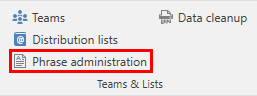
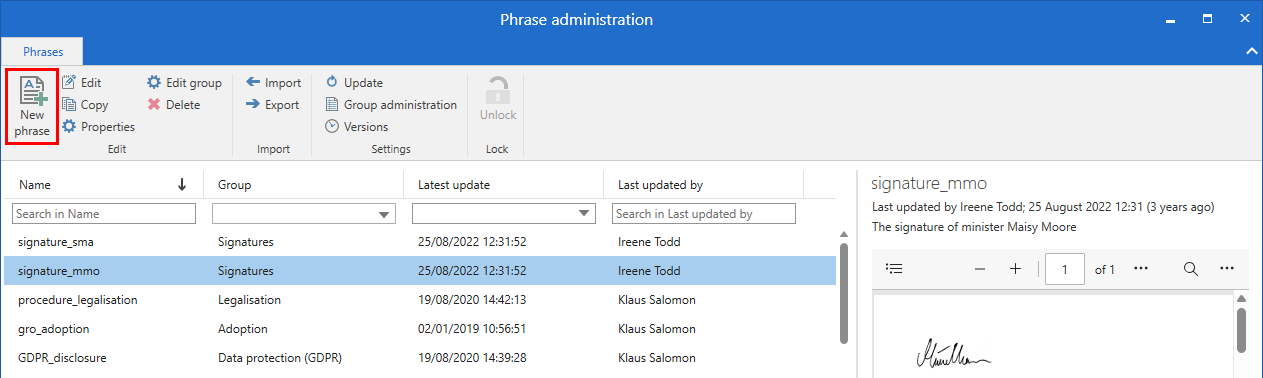
Create a Word document containing the actual signature and save it locally. In F2 click New phrase in the “Phrase administration” window to create a new phrase.
In the “Create new phrase” dialogue, name the phrase. Add a description if relevant and assign the phrase to a group using the “Group” drop-down menu. Then click Choose document to import the Word document with the phrase to F2.
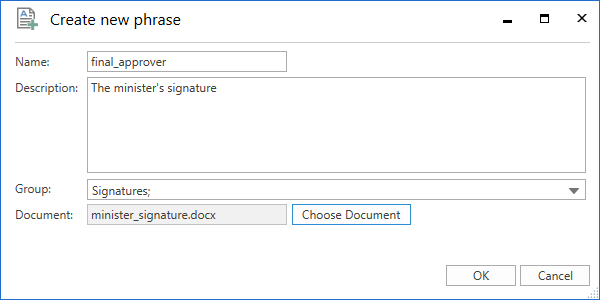
Click OK to create the signature phrase.
| To make it easier to find phrases containing signatures, create a new group named “Signature”. |
Manage signature phrase variants
If the organisation needs to use signature phrases for multiple users, you can manage the phrases using variants. A phrase can have an unlimited number of phrase variants. F2 merges the relevant phrase variant into the document template instead of the default phrase if the condition for the phrase variant is met. The condition is met when the final approver has a signature phrase that matches their username.
You create phrase variants in the same way as default phrases, but their names are important. F2 recognises a phrase variant when it follows this naming formula:
-
[name of the default phrase]%[F2 username]
For instance, a default phrase named “final_approver” can have a variant for the user Maisy Moore, whose username is “mmo”. The phrase variant must then be named “final_approver%mmo” when created in the “Phrase administration” dialogue.
In the document template, simply insert the name of the default phrase - in this instance, $signature:final_approver$ - without taking the individual variants into account. F2 evaluates the variants against the specific approver and the variants in the phrase archive when merging the signature phrase.
| If a phrase variant has not been created for the relevant user, F2 inserts the default phrase instead. Keep in mind which signature the default phrase contains. For this reason, the default phrase could be the organisation’s logo. |
Apply signature manually
It is possible to merge signature phrases outside of approval processes. Switch to edit mode on the record, right-click on the relevant document, and select Insert my signature in the context menu. F2 then merges the signature phrase into the document.
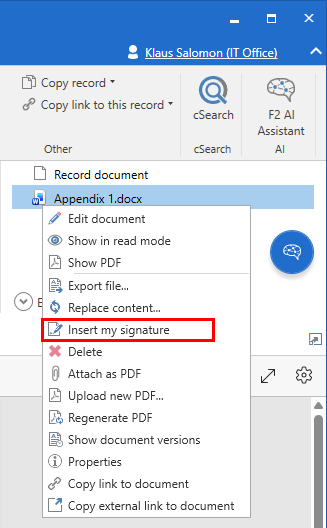
If multiple phrase variants have been created, F2 inserts the phrase variant for the user who clicks Insert my signature. If a phrase variant has not been created for that user, F2 inserts the default phrase.
| The manual merging option can be disabled through a configuration. F2 is configured in cooperation with cBrain. |