Working in F2
In F2, all documents and approvals are organised using records.
A record is similar to an email, but it can also be viewed as an activity. For example, you can write a memo, a checklist, or an agenda in the record and attach documents and presentations to the activity.
A record contains a wide range of metadata, including its responsible user, creation time, and recipients. This metadata is used to create overviews in the form of search lists.
When you send a record, it becomes an email. You can send emails directly from F2.
The record is the primary work item in F2. Documents are created directly on the record, which can subsequently be sent in an approval process, for example.
Records are organised in cases. Records concerning the same topic or decision are attached to the same case. Cases can be thought of as projects and are used to maintain an overview of a project or matter.
Your inbox
Your inbox is the first thing you see when you open F2. Here you can carry out your daily work and keep track of what you receive in F2.
The records in your inbox are listed on the left. These may include records with approvals in which you are involved, records on which you have received a chat, or records emailed to you.
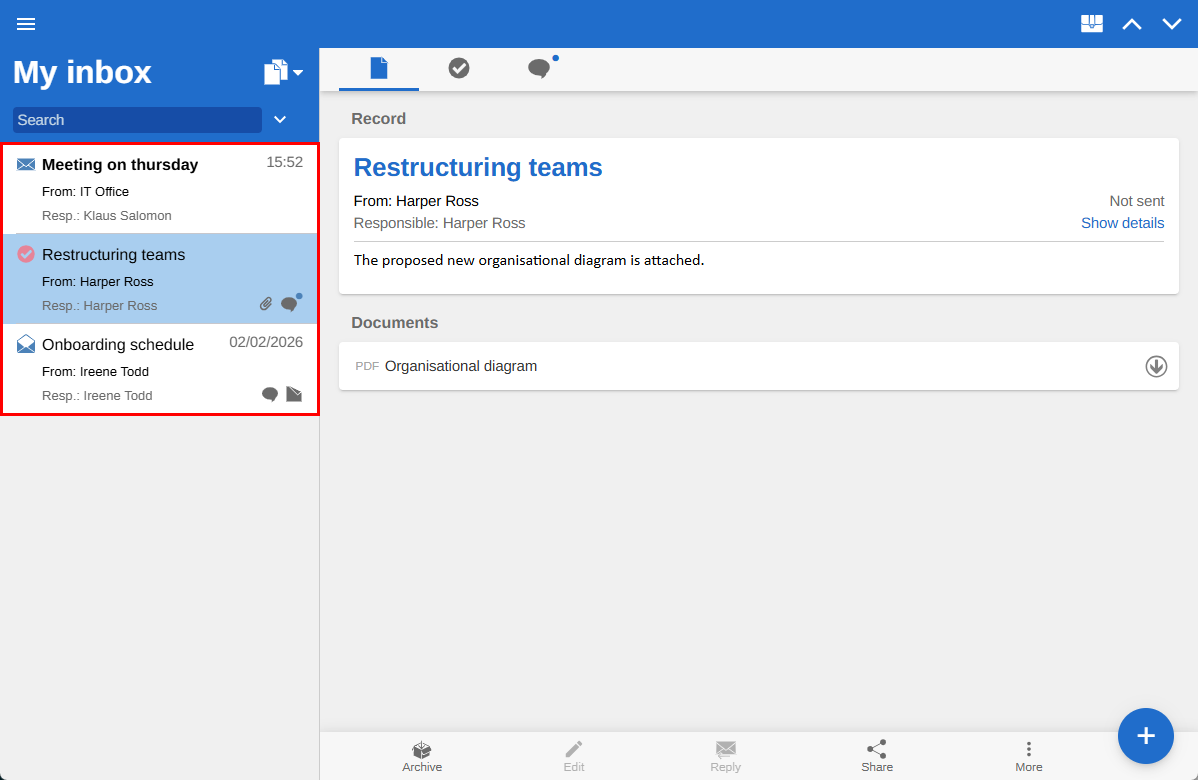
The icons next to the records in your inbox indicate the record type:
| Icon | Record type | ||
|---|---|---|---|
|
Regular record |
||
|
Unread email |
||
|
Read email |
||
|
Approval
|


When you select a record in the list, a preview of its contents is displayed on the right. The icons at the top of the preview give you access to the elements on the record.

| Icon | Description |
|---|---|
|
The record contains a record document. For example, the record document may contain the text of an email. Select the record icon to view the record document. |
|
If the record contains an approval, select the approval icon to view the approval process and the attached documents to be approved. |
|
If you are involved in one or more chats on the record, select the chat icon to access them. |
|
If the record contains one or more notes, select the note icon to access them. |




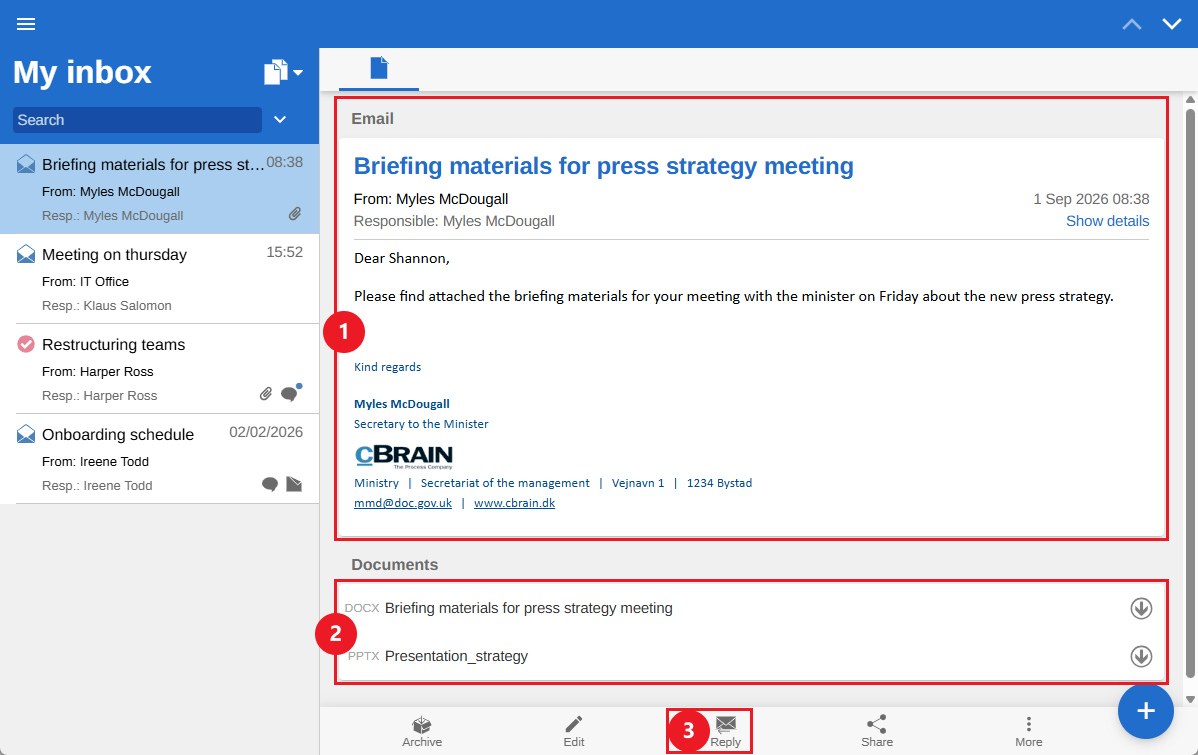
Select a record with an email icon to read the email text (1), view the attached documents (2), and reply to or forward the email (3).
Change the inbox view
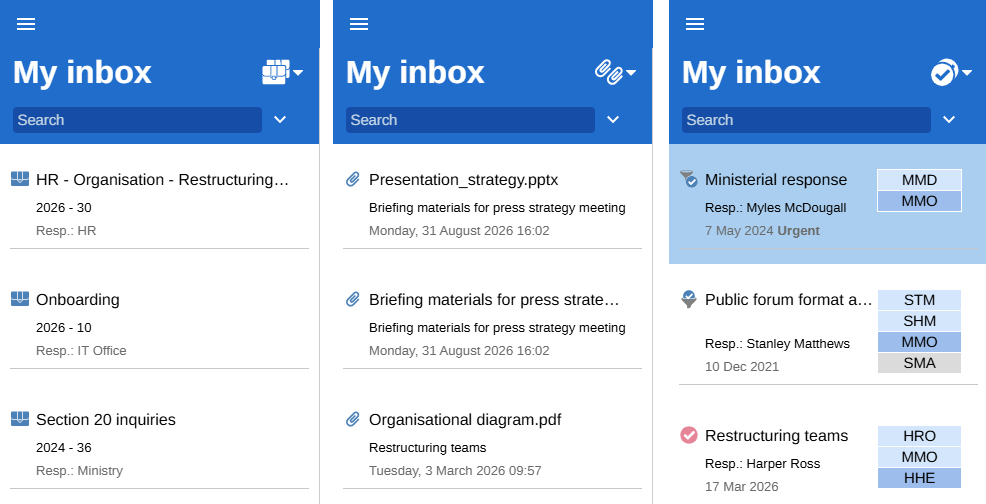
By default, your inbox is displayed as a list of records. You can also display the inbox as a list of cases, documents, or approvals. This also applies to all other search lists in F2.
To change the inbox view, open the "Show as"  menu next to the name of the open search list.
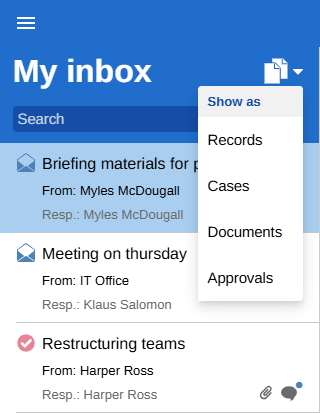
You can select the following alternative inbox views:
-
Cases: Show the cases to which the records in your inbox are attached.
-
Documents: Show the documents attached to the records in your inbox.
-
Approvals: Show the approvals in your inbox.