Searches
You can search in F2 in several ways. A search can either be performed once or saved as a new search list.
Search lists
In addition to the searches you perform yourself, F2 contains a number of standard search lists.
When you open F2 for the first time, search lists such as "My inbox" and "My archive" are already available.
You can access your search lists from the menu in the top-left corner.
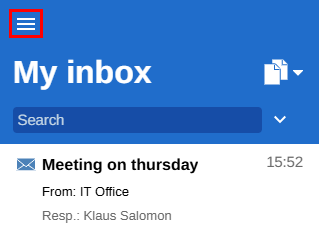
The menu opens an overview of standard search lists and other search lists.
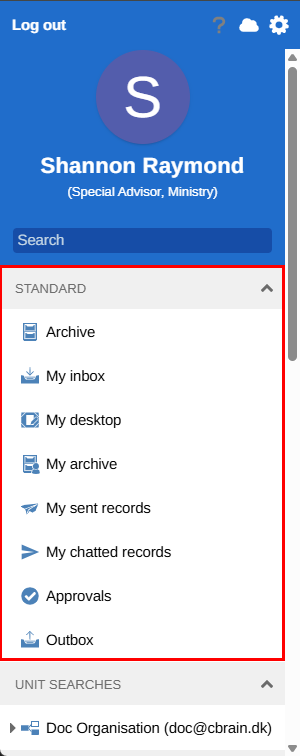
The standard search lists are described below:
| Search list | Description |
|---|---|
Archive |
Contains the ministry’s archive in F2. Here you can search for records and cases to which you have access. |
My inbox |
Contains records sent to you. These include approvals, chats, and emails. |
My desktop |
Contains records that you create. |
My archive |
Contains all types of records that you have been involved in and still can access. The list functions as a subset of the "Archive". |
My sent records |
Contains records that you have sent to users or participants, internally or externally. |
My chatted records |
Contains all types of records on which you have sent a chat. |
Outbox |
Contains emails that are being sent. Once a delivery has been sent, it automatically disappears from “Outbox” and can subsequently be found in "My sent records". |
Approvals |
Contains ongoing approvals to which you have access. |
In addition to the standard search lists, there may be search lists for specific users and units. These are managed by the organisation’s F2 administrator.
Search for records
You can search for records in any search list. The search field above each list searches that particular list. F2 finds records whose title or associated case title contains the words you enter in the search field.
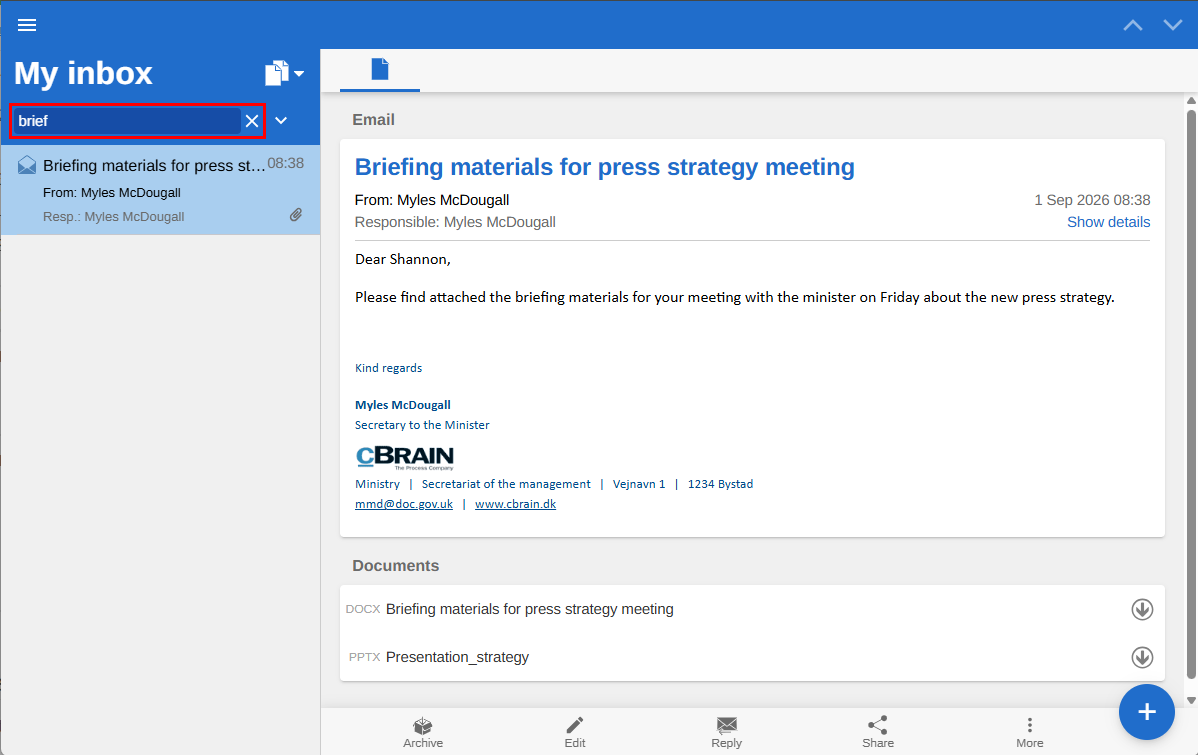
You can also use advanced search options such as advanced search and cSearch.
| If you change the view mode of a search list, you can search for cases, documents, and approvals in that list. |
Advanced search options
You can search for records in any search list in F2. Select the arrow  next to the search field to display a number of advanced search and filtering options.
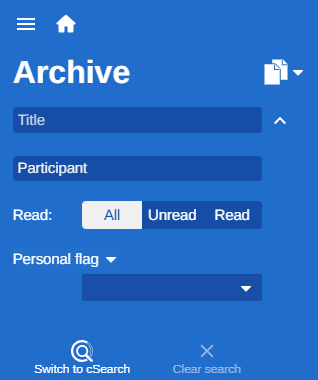
You can search by:
-
Title or text that is included in a record or case title.
-
Participant to find records on which specific participants appear.
Use the following filters to choose what to display in the list:
-
All/Unread/Read.
-
Personal flag to find records with the selected flag.
Select Switch to cSearch to search using F2 cSearch.
cSearch
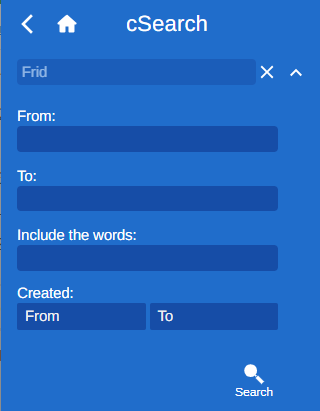
If your organisation uses the F2 cSearch module, you can perform free-text searches across all data in F2 to which you have access.
You can access F2 cSearch from the search field by expanding the advanced search options in any search list. Select Switch to cSearch to open cSearch.

Enter one or more search terms in the search field. The search starts automatically as you type. cSearch finds all contexts in which the search terms occur.
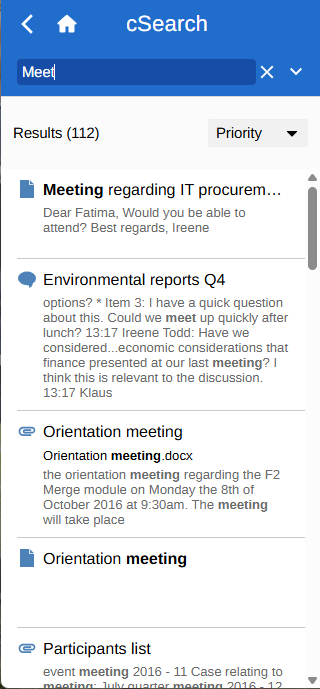
F2 cSearch also provides advanced search options. You can search for specific content in the "From", "To", and "Created" fields or for content in a record, case, or chat.