Approvals in F2 Manager 2
| The content of this website is last updated to F2 version 13. cBrain are working hard on supplying you with the newest documentation of F2. In the meantime you can read about the latest features and changes in our release notes. |
F2 Manager 2 gives you access to active approvals where you are the approver at the current step. An approval is transferred to F2 Manager 2 when it is sent to a step where you are an approver. The approval disappears from the list of approvals when you return or approve it, thus leaving your step. After this you can find the approval on the "History" tab.
Tap Approvals at the bottom of the ribbon on F2 Manager 2 to display a list of all available approvals.
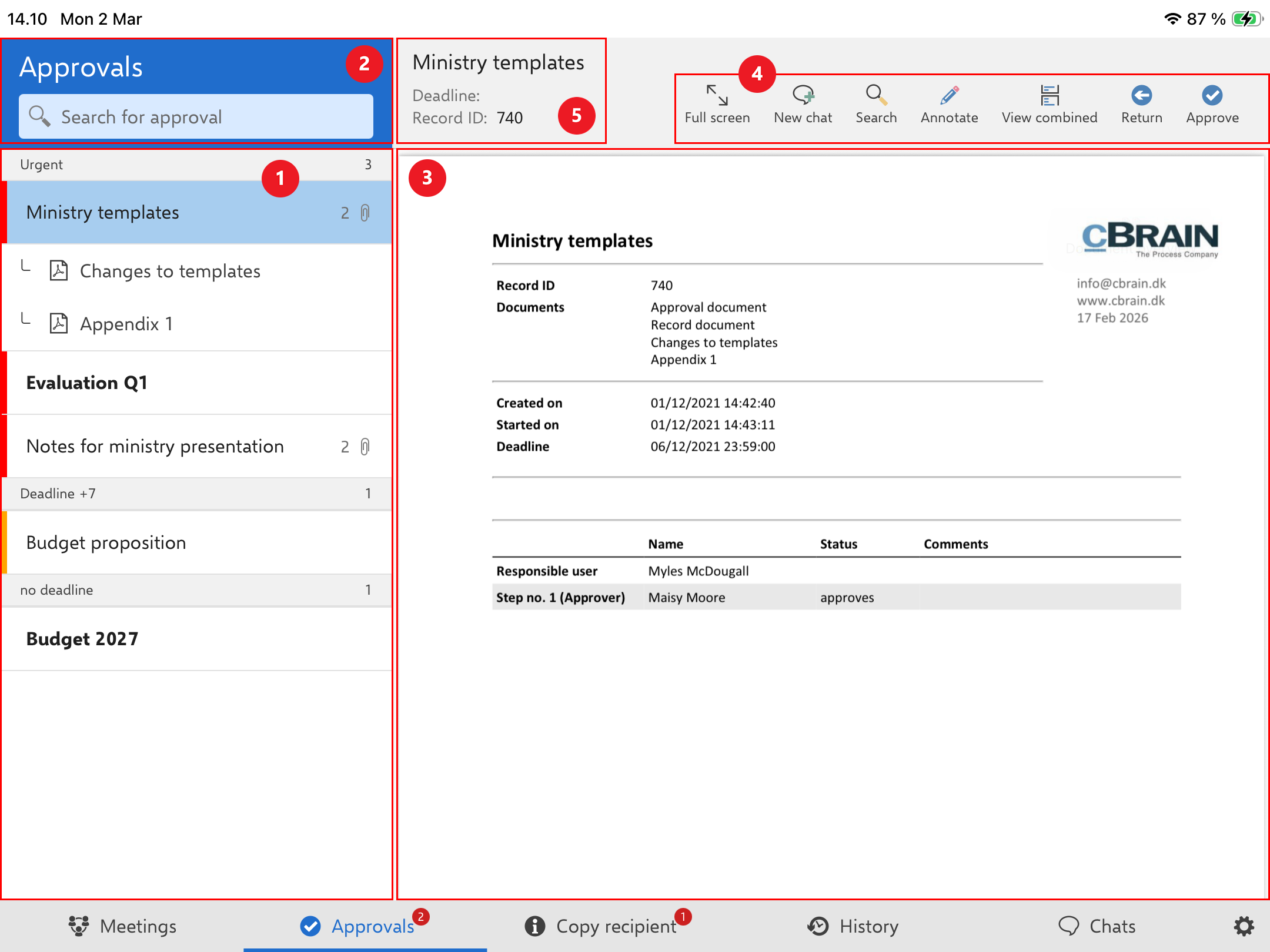
On the left you can see a list of transferred approvals, attached documents, and chats (1). You can search for approvals using the search field above the list (2). When you tap an approval in the list, the approval document will be displayed in a preview on the right (3). Above the preview, in the right side of the ribbon, are functions for processing the approval (4). In the left side of the ribbon are the metadata of the selected approval such as title, deadline, and record ID for the record associated with the approval (5).
| If you are a gated approver, your gatekeeper will select which approvals are transferred to F2 Manager 2. Some approvals may not be transferred to F2 Manager 2 even though you are an approver on the current step of the approval. Read more about the F2 Gateway Approvals module. |
The approvals list
Approvals are displayed in the approvals list with title and number of attached documents. The list is sorted by approval deadline. If there are multiple approvals with the same deadline, they are grouped. The deadline and the number of approvals in the grouping are shown in the grey band above a group of approvals.
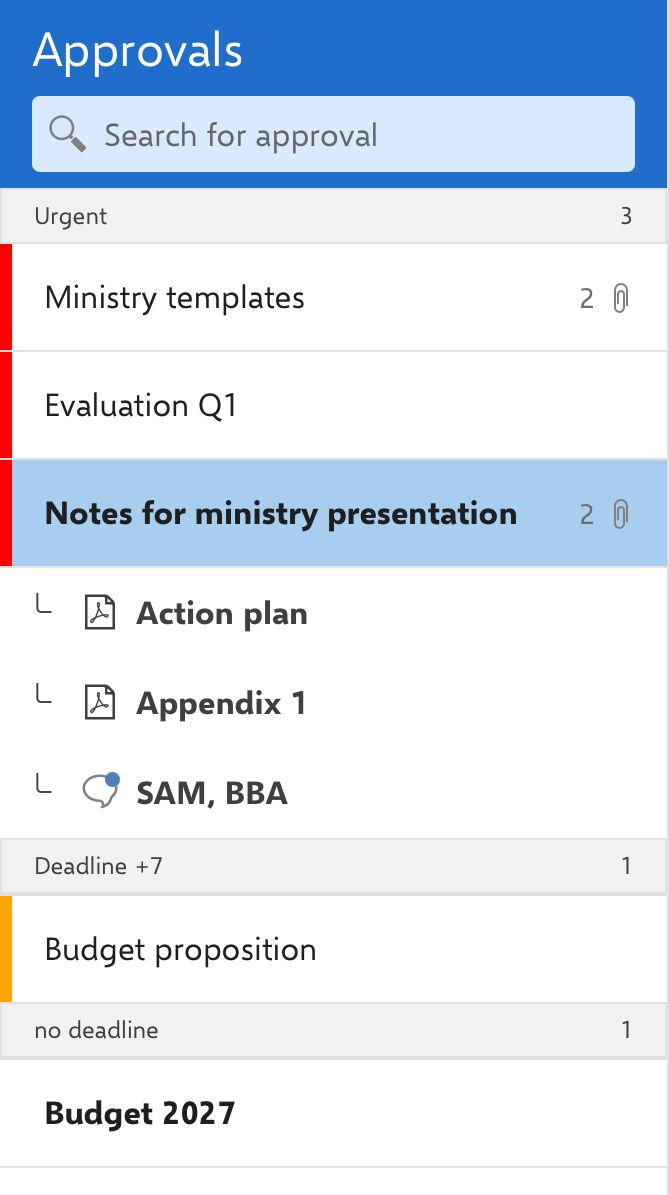
Approvals marked "Urgent" are placed at the top of the list. Approvals without a deadline are placed at the bottom of the list. Approvals that are both marked "Urgent" and have a deadline are placed in the "Urgent" group. Unread approvals and documents are bolded in the list.
| If you are a gated approver, your gatekeeper can sort and prioritise your approvals. |
Search for approvals
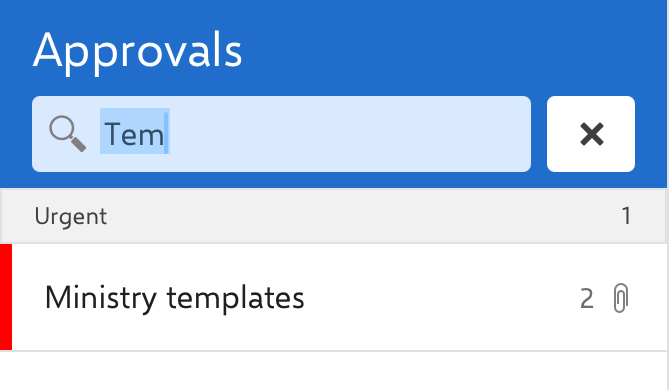
You can search for approvals using the search field above the approvals list. You search by the title of the approval.
Approvals ribbon functions
The ribbon above the preview contains menu items for working with the approval.

When the ribbon is shortened, the menu items are gathered in the "More" drop-down menu.
The functions are as follows:
| Function | Description |
|---|---|
Full screen/Split screen |
Display the selected content on the entire screen or restore the default view. |
Share |
Share the document with other apps on your iPad. This function is only available for attachments. You cannot share an approval document. |
New chat |
Create a chat on the approval. |
Search |
Search within the selected document. The first match is highlighted in yellow. Other matches are highlighted in white. |
Hide annotations/Show annotations |
Hide or show annotations in the selected document. The menu item is only visible for annotated documents. |
Annotate |
Open the selected document in annotation mode. |
View Combined/Split view |
View the approval document and the attached documents in the preview either as a combined PDF or as separate PDFs. |
Return |
Open a dialogue where you can return the approval to a previous step. |
Approve |
Open a dialogue where you can grant approval. |
Resume |
Open a dialogue where you can resume the approval. |
Read and annotate approval
You can read and annotate approvals on F2 Manager 2 before processing them. You can:
-
Read the approval and its attached documents.
-
Annotate the approval and its attached documents.
Read approvals and their documents
When you tap an approval in the list on the left, its approval document opens in the preview on the right, and the list of its attached documents is expanded. The number of documents attached to an approval is shown next to the attachment icon on the item. Unread approvals and documents are bolded in the list.
Tap an attached document to preview it on the right. F2 Manager 2 remembers your position in a document if you navigate away from it. The position is reset when you restart the app.
Annotate documents
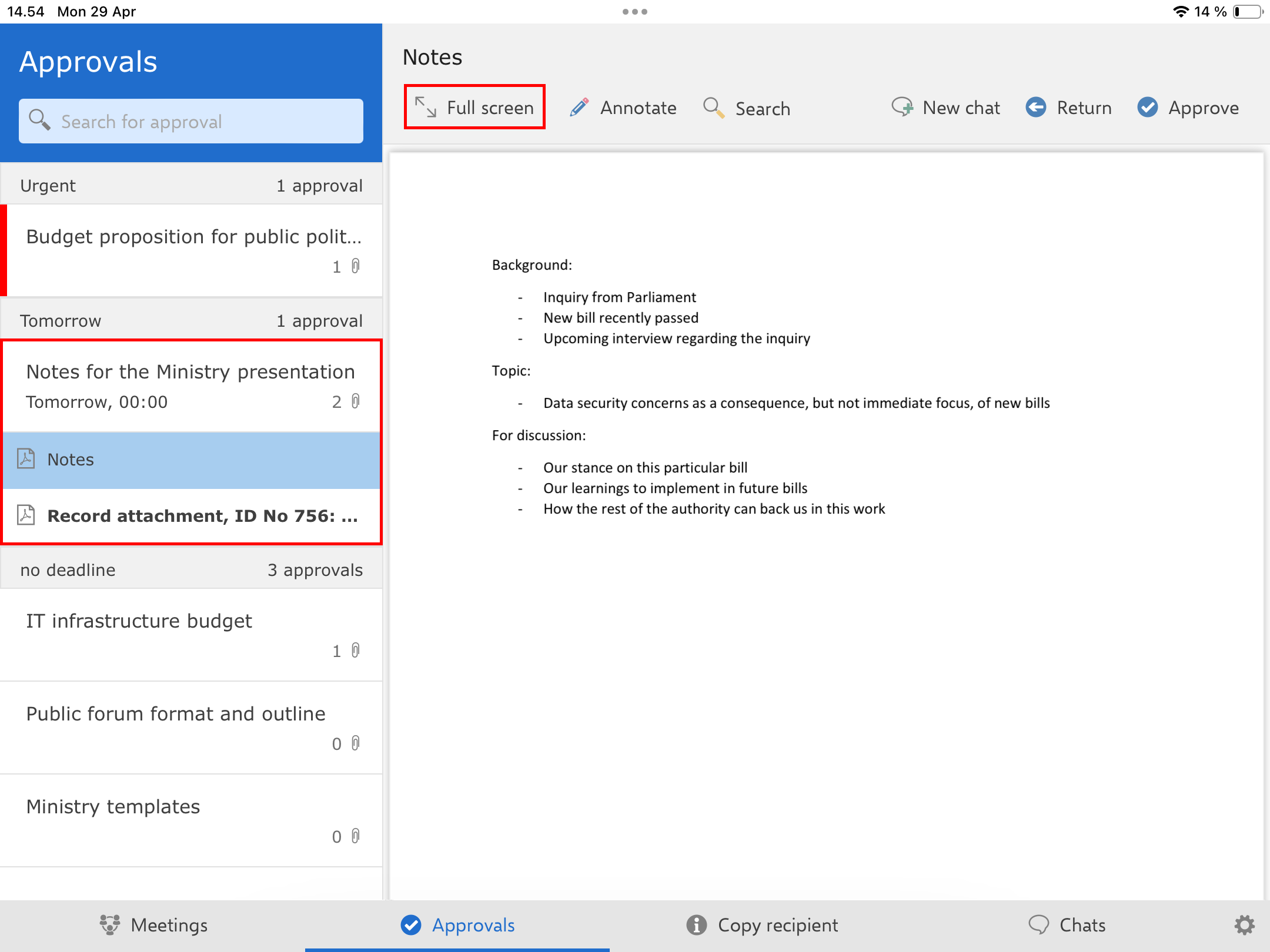
You can annotate documents. Tap a document in the list on the left to show it in the preview to the right. Then tap Annotate in the ribbon to open the selected document in annotation mode.
Tap the pencil icon in the toolbar at the top of the screen to activate drawing mode. When drawing mode is active, the drawing tools appear at the bottom of the screen by default. You can move the drawing tools by pressing and dragging them to the desired location. F2 Manager 2 remembers where you placed the drawing tools the next time you open a document in annotation mode.
Tap a tool to start using it.

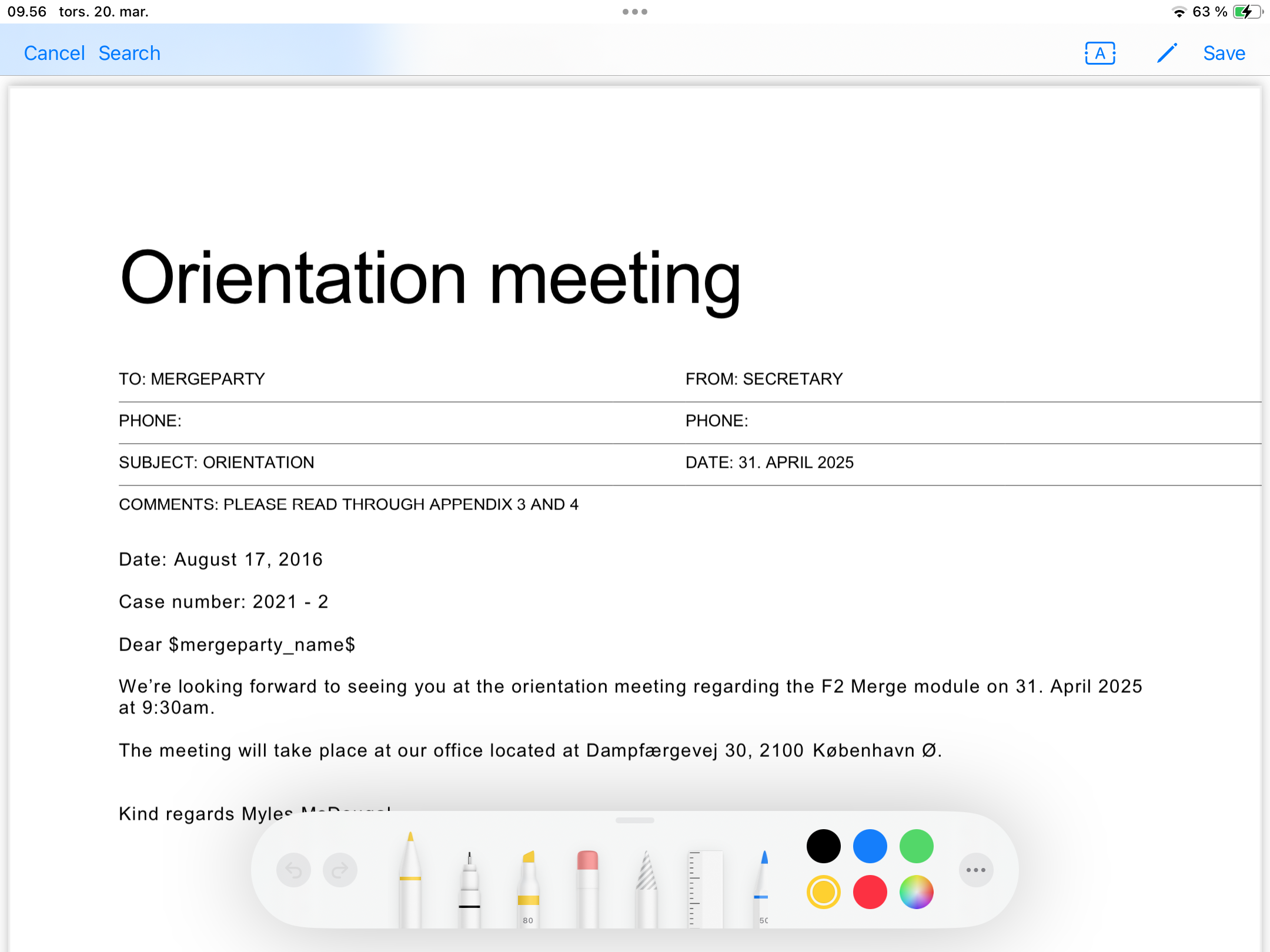
When drawing mode is active, use two fingers to scroll.
Tap the pencil icon in the toolbar at the top of the screen to deactivate drawing mode.
Tap Cancel in the toolbar to undo your recent annotations and exit annotation mode.
Tap Save in the toolbar to save your latest annotations and exit annotation mode.
If the document already contains annotations, you can jump between them using the Previous and Next buttons in the "Page overview" dialogue. The dialogue appears when you tap the screen and disappears when you scroll.

The annotated document is saved as a PDF file on F2 Manager 2 and in F2 Desktop. When you reopen the document on F2 Manager 2, you can choose to view the PDF file with your annotations or you can choose to hide the annotations and view the original document.
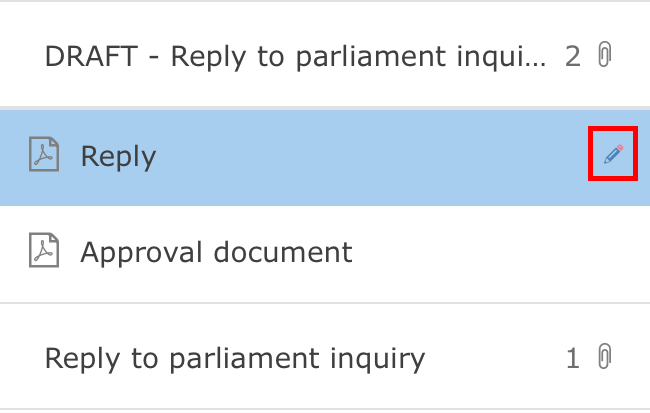
Annotated documents are shown with a pencil icon in the list to the left.
| In some situations, you may risk overwriting your annotations. F2 Manager 2 displays a warning dialogue so you can cancel the action. For example, the warning appears if you annotated a document that was later updated by another user in F2 Desktop. In this situation, you must hide your annotations before you can view the new version of the document. |
Write annotations
You can make text annotations in a document. Tap the text box icon  in the toolbar, then tap the location in the document where you want to place the text box.
The keyboard opens automatically, and the text in the text box is selected so you can start typing immediately. Change the size of the text box by dragging the small blue dot on the right. Move the text box by pressing it and moving it to another location in the document.
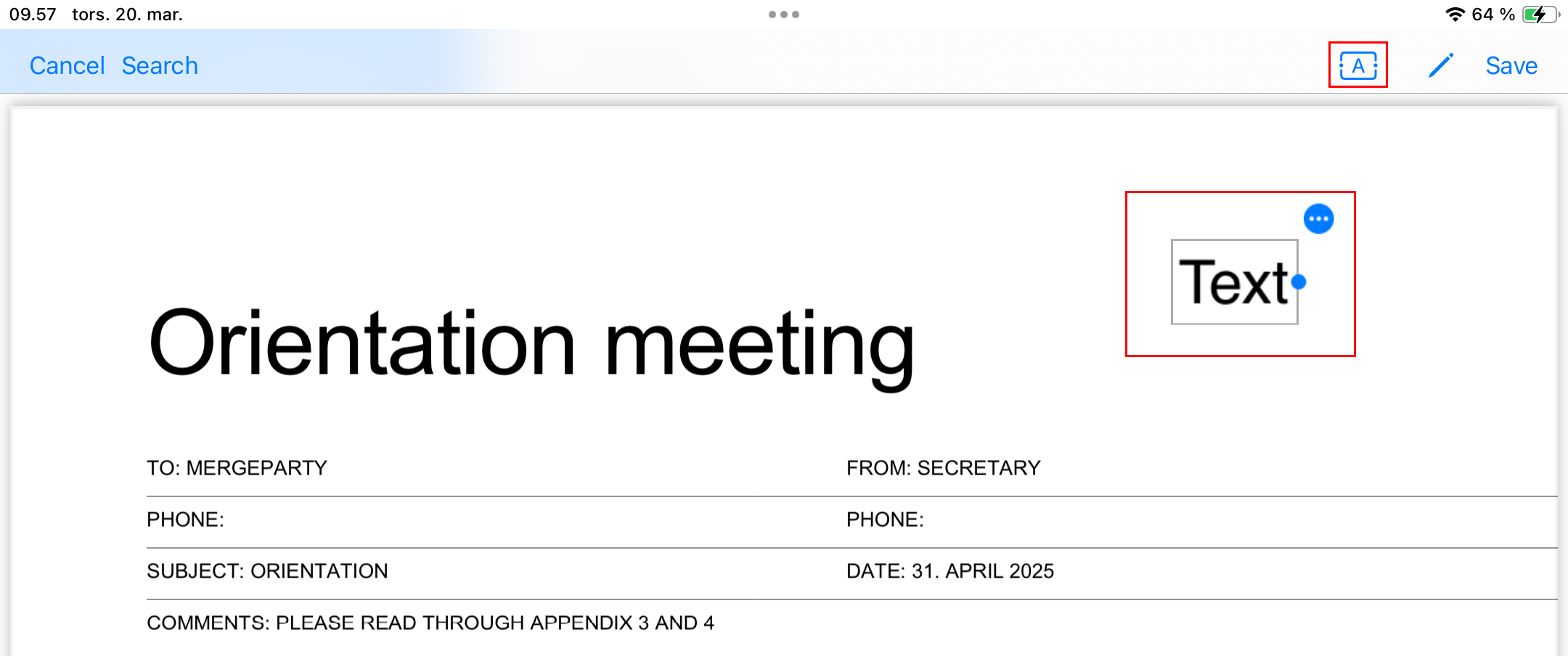
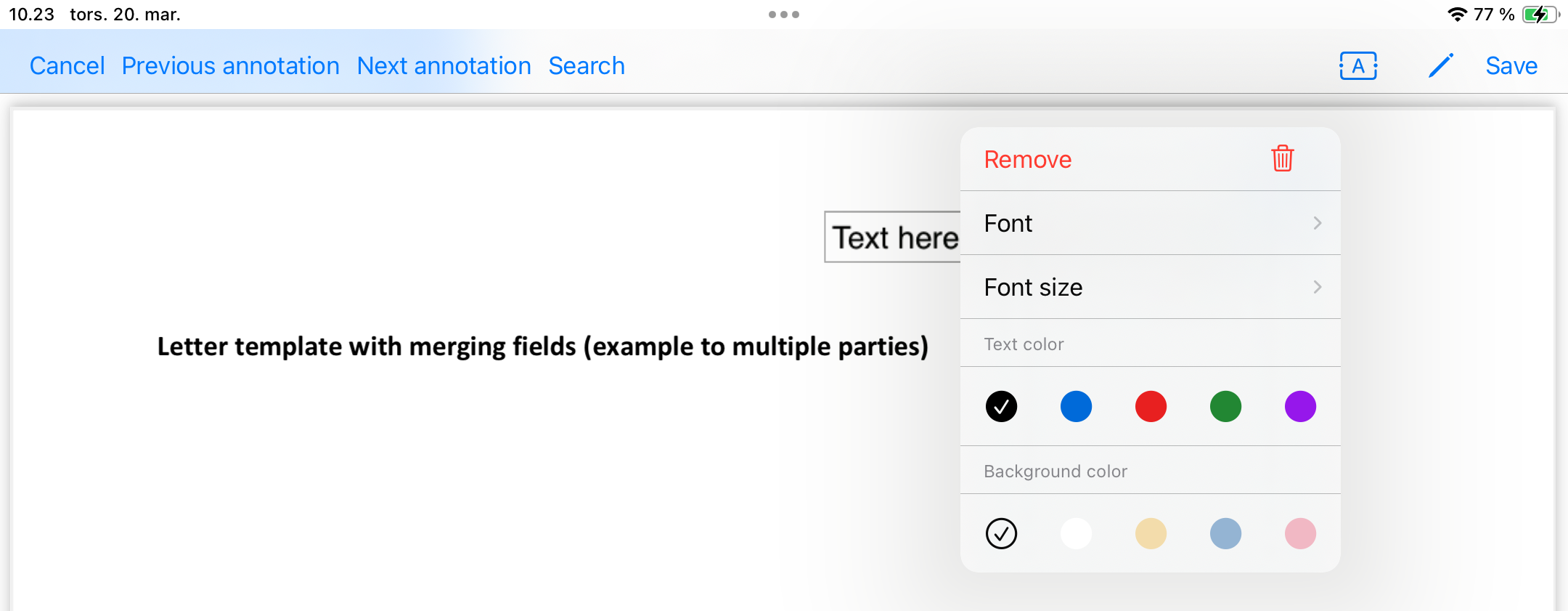
Tap the round menu icon in the top right corner of the text box to open an options menu. Here you can choose font type, size, and colour, as well as background colour. From the menu you can remove the text box by tapping Remove.
Tap the pencil icon in the toolbar to display the other drawing tools.
Hide or show annotations
You can hide your saved annotations. Tap Hide annotations in the ribbon above the preview to see the original document without your annotations.
Tap Show annotations to view your annotations again.
| If you tap Annotate while your annotations are hidden, a warning appears that you are about to overwrite your existing annotations. To add annotations while keeping your existing annotations, first tap Show annotations and then Annotate. |
Annotations in the document preview
If you have previously made annotations in a document, you can navigate between them from the "Page overview" dialogue in the document preview. The dialogue appears when you tap the screen and disappears when you scroll.

In the "Page overview" dialogue, tap Previous or Next to jump between annotations. You can also tap Page overview to see an overview of all pages in the document.
Tap With annotations in the page overview to see all pages in the document that contain annotations.

Access annotated documents from approvals in F2 Desktop
The PDF file with the annotations can be accessed from F2 Desktop by all approvers on the approval. The filename for the PDF will be "[Original title] (annotated by [username])" as in the example below.
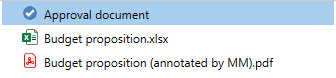
| An approval record can only contain one F2 Manager PDF. The filename indicates the name of the user who created the original annotation document. The PDF file name always indicates the first annotating user, and not any subsequent annotating approvers. Each time a new annotation is saved, a new version of the document is created. Right-click on the PDF to view document versions. |
Process approvals
You can process approvals on F2 Manager 2 by returning them or granting approval. In addition you can resume an approval if it has been returned to your step from a subsequent approver.
| When you process an approval as a gated approver, your gatekeeper may apply or adjust your decision to either return or approve before the approval is sent to the relevant approval step. Read more about F2 Gateway Approvals. |
Return approval
Tap Return on the ribbon to return the selected approval to a previous approval step. A dialogue opens where you choose who the approval should be returned to and where you recommend resuming the approval. You can write a comment detailing why you are returning the approval.
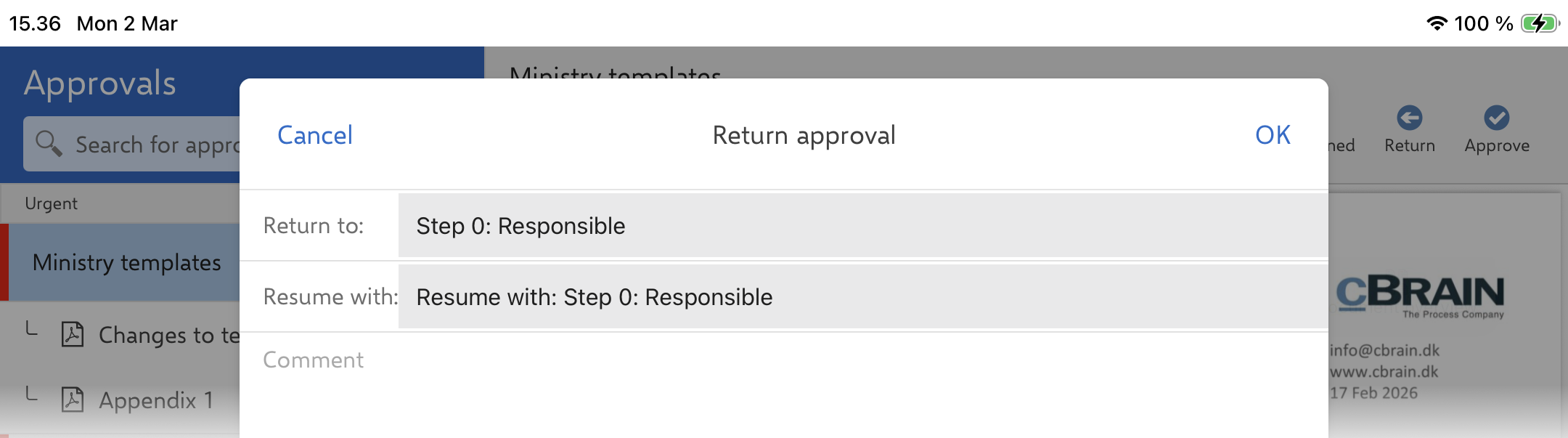
Tap OK to return the approval to the selected approval step.
Tap Cancel if you do not wish to return the approval.
Grant approval
Tap Approve in the ribbon to approve the selected approval. A dialogue opens where you can add a comment before approving.
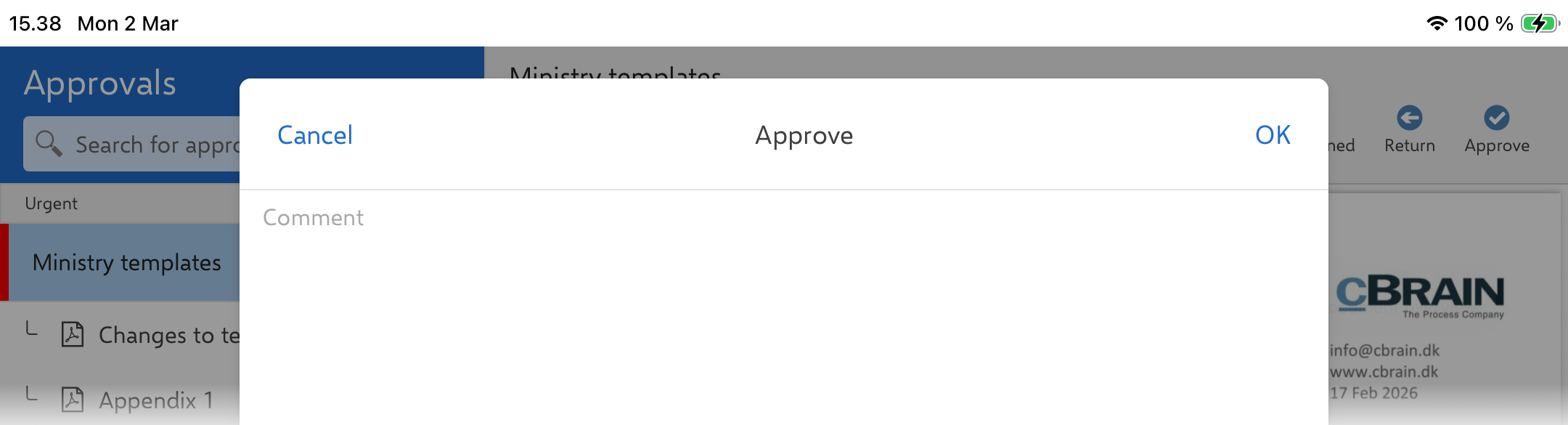
Tap OK to grant approval. The approval will move on to the next step or be approved finally if you are the last approver.
Tap Cancel if you do not wish to grant approval.
Resume approval
When an approval is returned to your step from a subsequent approver, you can resume it via the ribbon.

Tap Resume in the ribbon to resume the selected approval. A dialogue will open where you choose with whom to resume the approval. You can also add a comment.
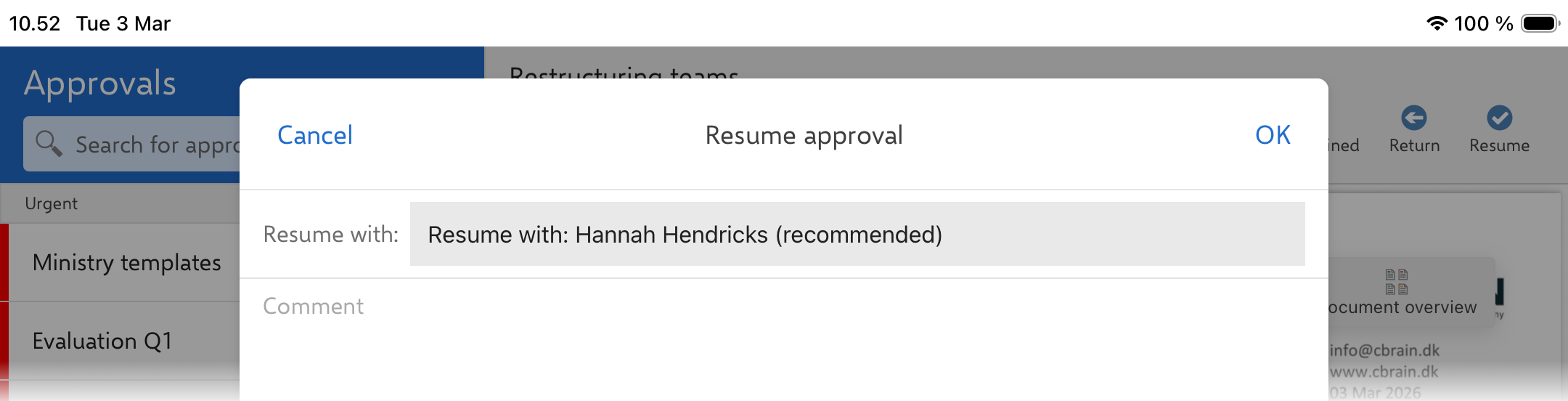
Read more about resuming approvals.
Chat from an approval
You can chat on approvals from F2 Manager 2. You can create a new chat from the ribbon.
Tap an approval in the approval list to view its chats, if any. Chats are displayed under attached documents. Unread chats are bolded.
Tap a chat in the list to read it in the chat window.
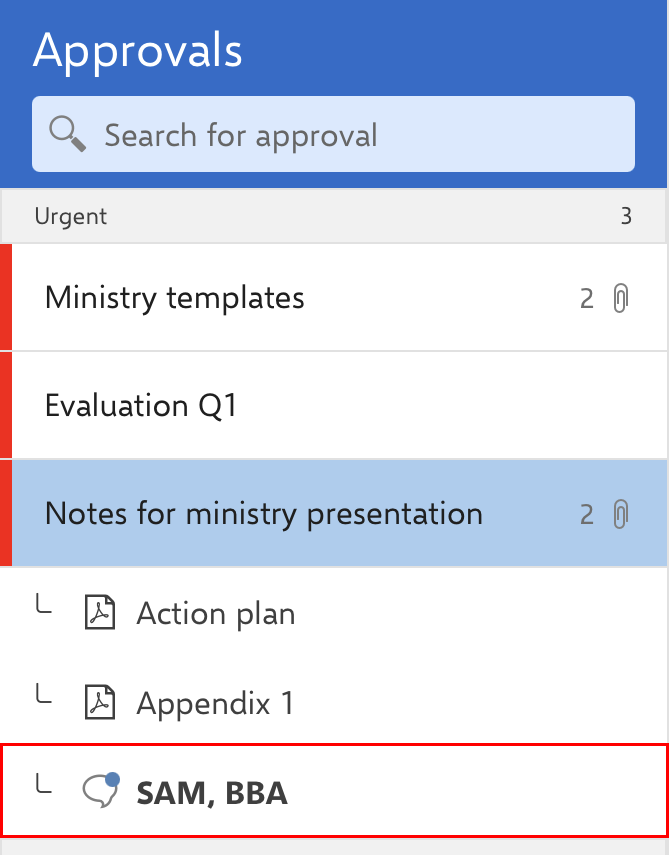
You can find an overview of all your chats on F2 Manager 2 in the chat list.
You can also receive chats on approvals on which you aren’t an approver. This type of chat only appears in the chat list on the "Chats" tab and not on the "Approvals" tab.