Menu items on the "Approval" tab
The "Approval" tab contains menu items that let you perform various actions, such as viewing document versions, changing the approval process, and exporting the approval as a PDF.
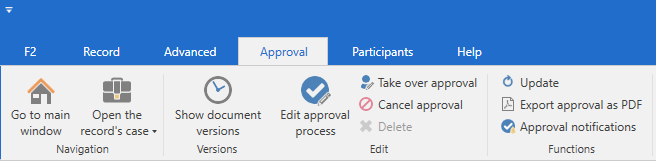
You can customise the ribbon in the window "Customise the toolbar, ribbon, and context menus".
| The table below describes all menu items on the approval tab ribbon. Your F2 may look different, depending on which setup your organisation has included in your F2 solution. |
| Function | Description |
|---|---|
|
Click on the menu items Go to main window and Open the record’s case to navigate between the main window and the record’s case. |
|
Click on Show document versions to see the current version number of the approval record’s approval document, the record document, and any attached documents in the document selector. Approval actions cannot be performed while document versions are shown. The personal setting "Ask if I want to exit the document versions view if I attempt to perform an approval action" determines whether this happens automatically or not:
|
|
Click on Hide document versions to change the menu item back to "Show document versions". The approval no longer shows the version numbers. |
|
Click on Edit approval process to make changes to an already initiated approval process. The approval process can be entirely changed as long as it has not yet started. Read more about editing an approval process. |
|
Click on Take over approval to take over an approval and replace approvers. Approvers that have already approved or steps that have been approved cannot be removed or replaced. Read more about taking over an approval. |
|
Click on Cancel approval to stop an ongoing approval process. The approval is removed from the "Approvals" list in the main window. Read more about cancelling an approval. |
|
Click on Reopen cancelled approval to reopen a cancelled approval. The approval resumes at the step where it was cancelled. Read more about reopening an approval. |
|
Click on Delete to delete an approval. An approval can only be deleted after it has been cancelled. Read more about deleting an approval. |
|
Click on Update to view the latest changes and additions to the approval. |
|
Click on Export approval as PDF to create a PDF version of the current approval which contains the approval document and approval information. Read more about sending an approval to external participants. |
|
Click on Approval notifications to open the "Approval notifications" dialogue. From this dialogue you can manage extra notifications for users who are participants in the approval process. |