Receive and manage approvals
| The content of this website is last updated to F2 version 13. cBrain are working hard on supplying you with the newest documentation of F2. In the meantime you can read about the latest features and changes in our release notes. |
You receive an approval in your inbox when the approval reaches the step where you are assigned as an approver.
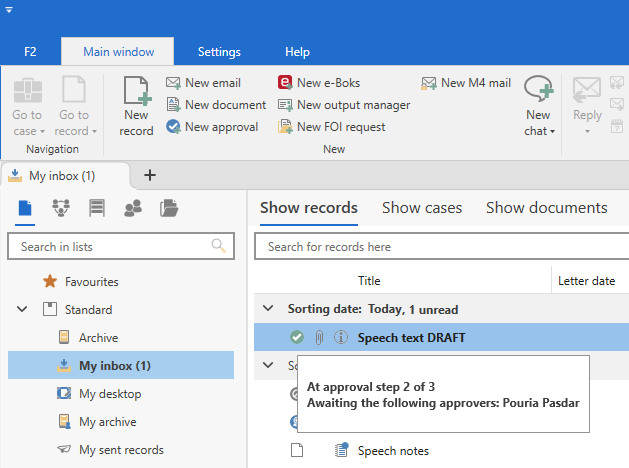
Hover the cursor over the approval icon in the result list to see a tooltip with the following information:
-
The current approval step.
-
Whose approval is pending.
-
Whether the approval has been returned.
Open the approval record to process the approval. As an approver, you have two primary processing options:
-
Approve
-
Return.
After approving or returning an approval, you can undo your approval action. You can also undo the start of the approval process.
Approval process overview
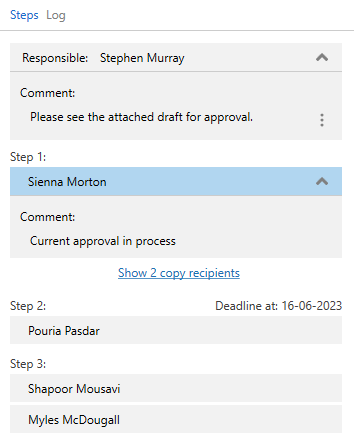
An approval record contains an overview of the approval process and its steps. A blue highlight indicates the current approver. In the example below, Sienna Morton is the approver on step 1.
The following table describes the processing options available to the approver and the responsible user.
Approve |
|
|
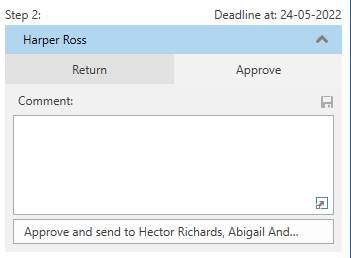
Select the “Approve” tab and click Approve and send to [username] to send the approval to the next step in the process. You can enter a comment in the “Comment” field. The final approver in the approval process sees the Final approval button. Clicking this button completes the approval process. |
Return |
|
|
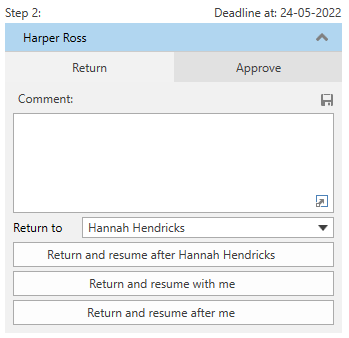
Select the “Return” tab to return the approval. In the “Return to” drop-down menu, select the step to which the approval should be returned. You can select any approval step before your own. The responsible user is selected by default. There are three return options:
|
Resume with |
|
|
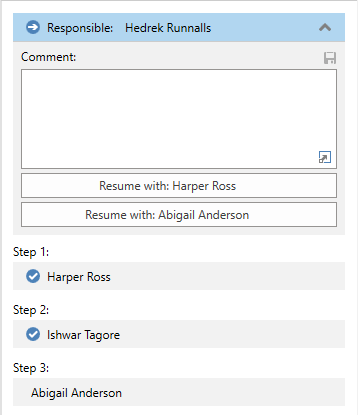
When an approval is returned to you, you have several options for resuming it. The available options depend on the individual approval process. An approval can be returned either to the responsible user or to an approver. The image shows an approval that has been returned to the responsible user. The responsible user has three options:
|
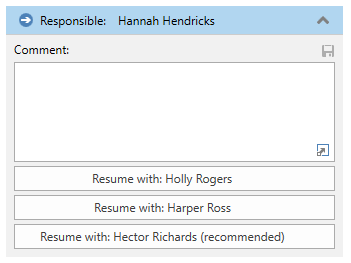
The record’s documents or metadata may be changed during an approval process. If the approval record has been changed after reaching your step, the “Approval” tab displays a yellow bar stating that changes have been made to the record’s documents or metadata.
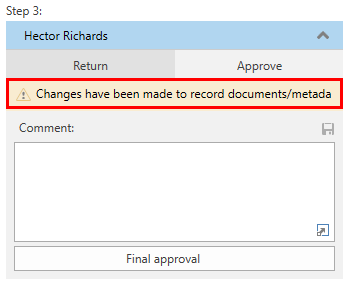
Click the triangular warning symbol  to see the changes in an info box.

Return, undo, or withdraw an approval
The approval process stops temporarily when one of the following actions occurs:
Return an approval
Click Return to send the approval back to the responsible user or to an approver on an earlier approval step. Select the user to whom you want to return the approval in the “Return to” drop-down menu.
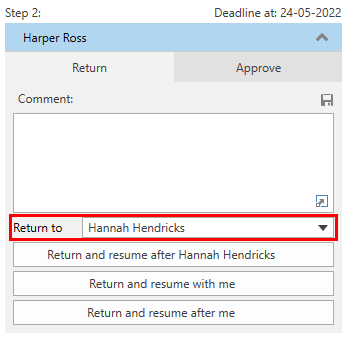
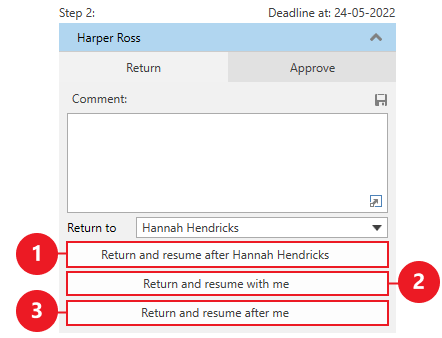
Once you have selected the return recipient and entered a comment, if relevant, you have three return options:
-
Return and resume after [username] (1): Select this option to recommend that the approval be approved on every subsequent step before it reaches your step again.
-
Return and resume with me (2): Select this option to recommend that the approval resume on your step after the return recipient has processed it. This means that approvers on any intermediate steps do not have to approve again.
-
Return and resume after me (3): Select this option to recommend that the approval resume after your step once the return recipient has processed it. This means that the approval does not return to your step. This is also known as a conditional approval. If you are the final approver in the approval process, the approval is finally approved when the return recipient resumes it.
Undo an approval
As an approver, you can undo an approval, sending the approval back to your own step. The approval process then awaits a new action from you.
To undo your approval, click the three dots below your step, and then click Undo approval.
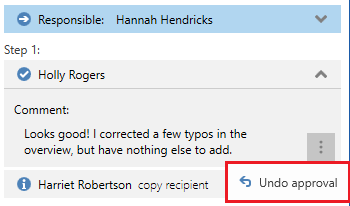
Undoing your own approval action does not affect the actions of other approvers. You can only undo the action if the approval has not been finally approved.
Withdraw an approval
You can withdraw an approval process. This action cancels the initiation of the approval and withdraws it to the responsible user. Both the responsible user and the approvers in the approval process can undo the start of an approval.
To withdraw an approval, click the three dots on the responsible user’s step and select Withdraw approval.
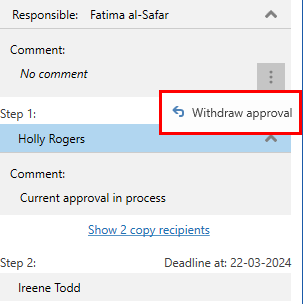
You cannot withdraw an approval that has been finally approved.
Resume an approval
An approval that has been returned, undone, or withdrawn is still in an active process and can therefore be resumed. To resume the approval, click Resume with: [username].
The steps on which an approval can be resumed depend on the actions preceding the temporary stop. The following sections describe the options in three situations:
Resume a returned approval
The options for resuming a returned approval depend on the return option selected by the returning approver.
As an approver, you can return the approval to the responsible user or to an approver on an earlier step and recommend where the approval should resume.
As the recipient of a returned approval, you can resume the approval on any step after your own up to and including the step recommended by the returning approver.
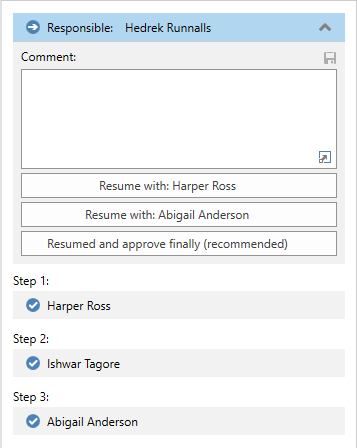
If the approver on the final step selects Return and resume after me, the approval is finally approved when the return recipient clicks Resumed and approve finally (recommended).
Resume an undone approval
If an approver has undone their approval action, the approval can be resumed on any previously approved step as well as the first not yet approved step.
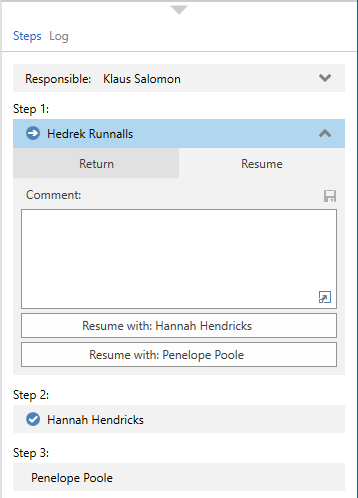
The responsible user, the approver who undid their action, and any approvers on intermediate steps can resume the approval.
Resume a withdrawn approval
If the responsible user or an approver has withdrawn the approval, it can be resumed on step 1 or on the next step that has not yet been approved.