Communication
You can send and receive emails in F2. Email is used to communicate with other F2 users and external recipients. You send and receive emails in F2 in much the same way as in other email applications.
Use email when you want to:
-
Communicate with external recipients.
-
Provide information internally.
-
Keep a record of correspondence.
| The documents on a record are locked when the record is sent as an email. If the communication concerns further work on the record’s documents, consider using a chat instead. |
Send an email
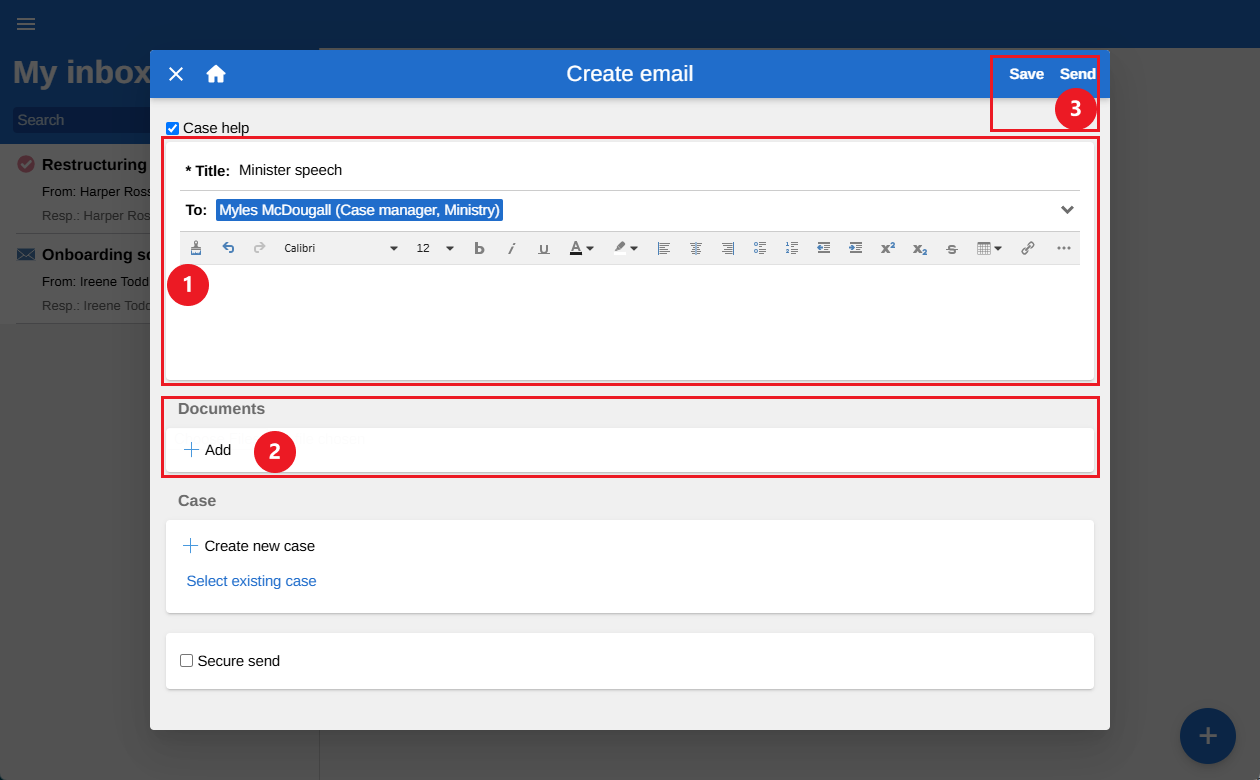
To send a new email, select the add icon  in the bottom-right corner and then Create email. Enter a subject in the “Title” field and add recipients in the “To” field.
Write your message in the text field (1) and attach any documents (2). Select Send in the top-right corner to send the email (3).
| Attach the email to a new or existing case before sending it. This ensures that subsequent correspondence is automatically placed on the same case. |
Chat
You can send chats to other F2 users. Chats are useful for informal coordination, communication, and information sharing. For example, you can use a chat to clarify questions about the contents of a record with the ministerial secretariat or other users. In F2, a chat is always linked to a record.
Chats can also be used to collaborate on documents. For example, you can assemble a team to collaborate on a particular topic or report. Chat lets the team work on the same document instead of emailing different versions back and forth. In F2, everyone works on the same record and document.
Important information about chats in F2:
-
A chat can only be seen by the users added as chat participants.
-
A chat allows the participants to edit a record and its attached documents without the record being sent as an email.
-
You can have multiple chats on the same record with different chat participants.
Create a new chat
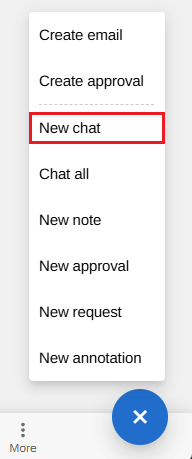
To create a new chat, open the relevant record. Select the add icon in the bottom-right corner and then New chat.
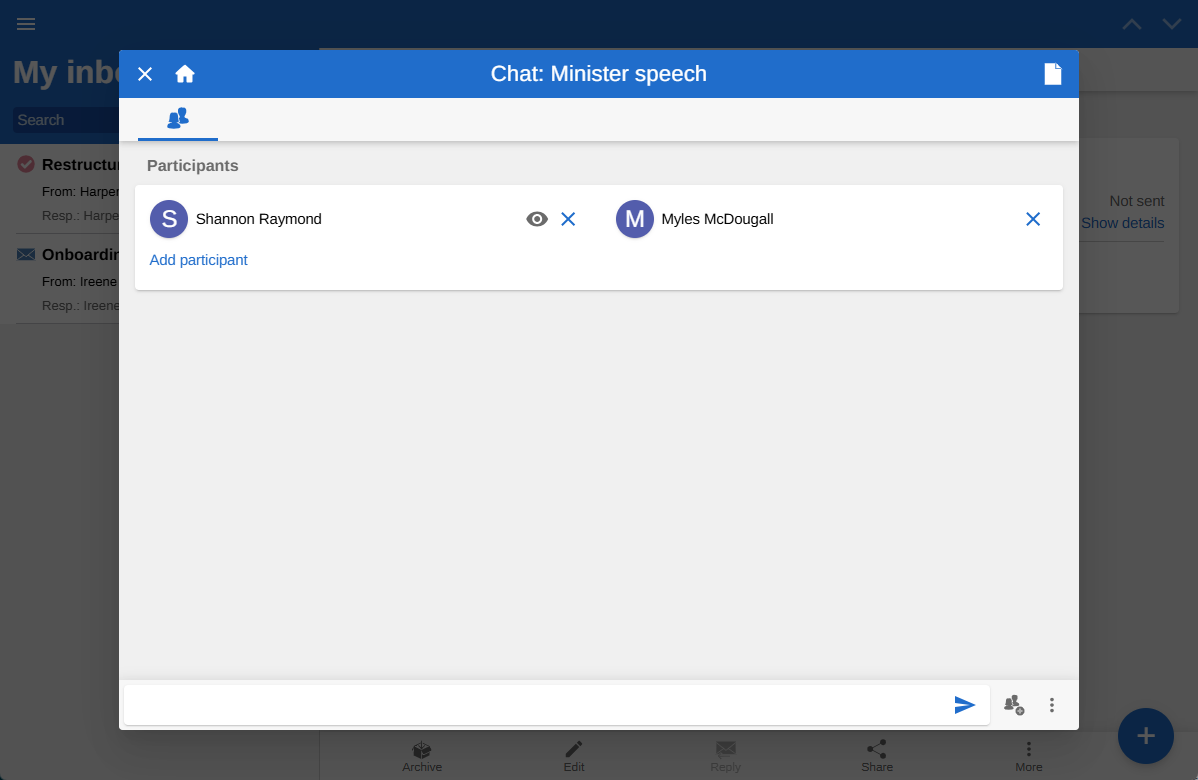
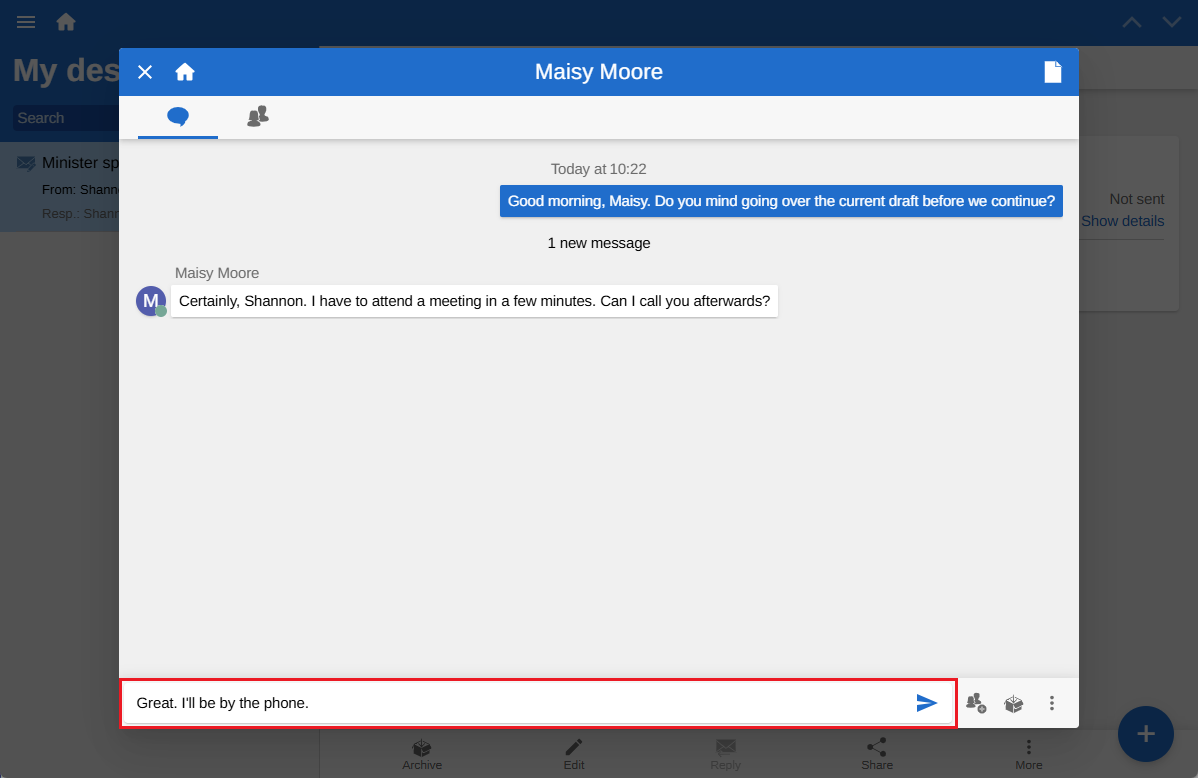
The chat window opens. Select Add participant in the top field and enter the name of the user you want to add. Type your chat message in the text field at the bottom.
View and reply to a chat
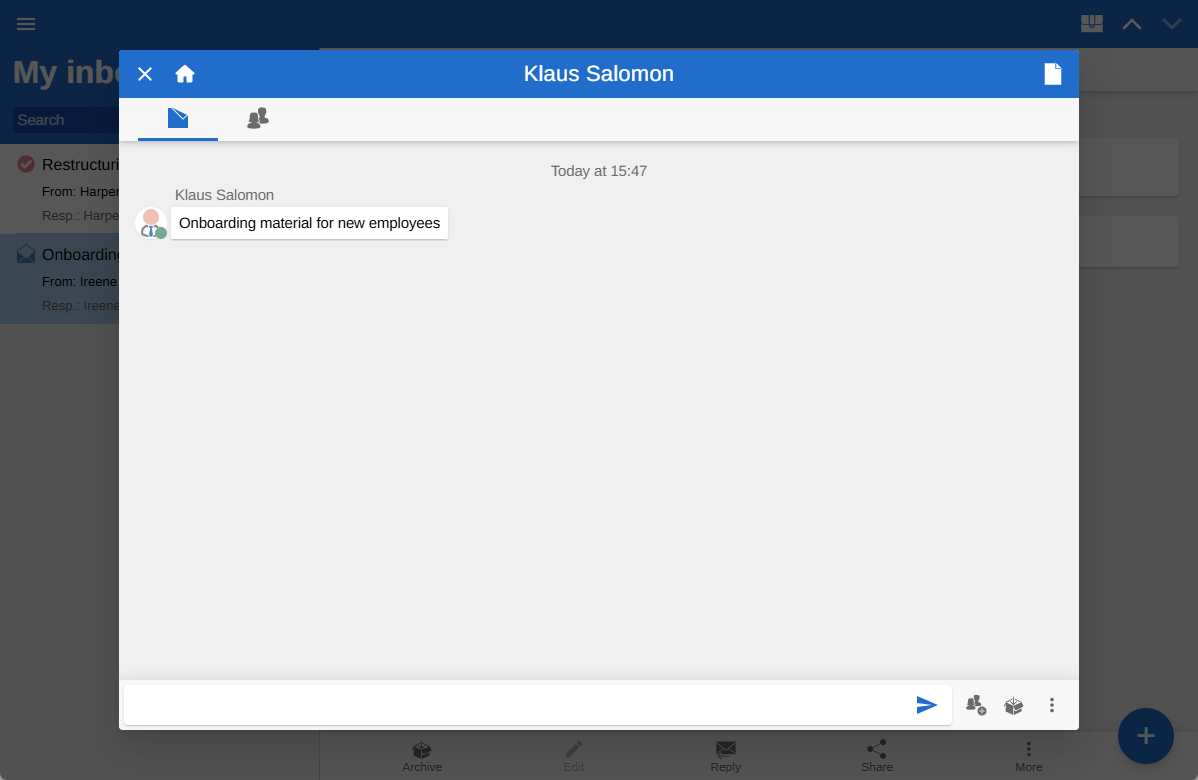
You can open chats in two ways: Select the chat icon  on a record in a search list, or select the chat icon above the record preview to open the chat window.
A blue dot next to the chat icon  indicates unread messages in the chat. The text in the chat preview is displayed in bold when there are unread messages.
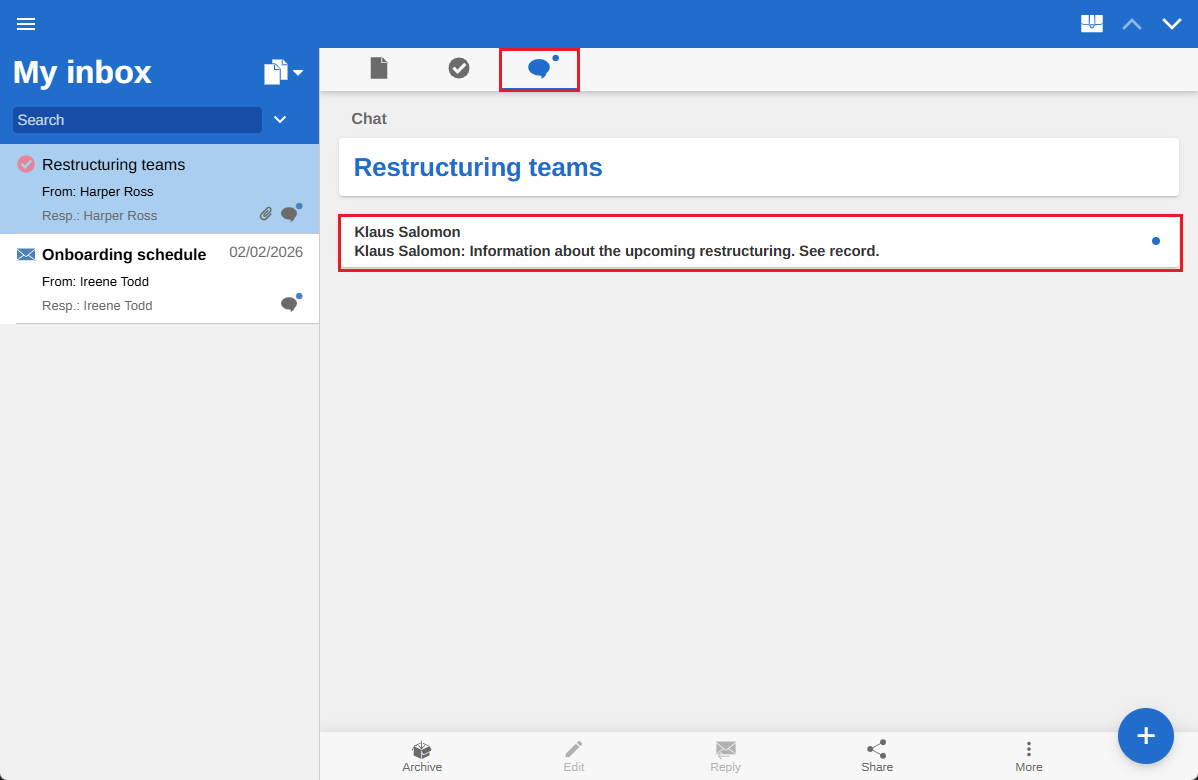
Select a chat to open it. Enter your message in the text field on the grey bar at the bottom. Select the send icon  to send the message.
You can select the participants tab (1) at the top to see who is participating in the chat. Here you can also select Add participant and enter a name to add another participant. To remove a participant from the chat, select the X next to their name.
Select the record icon (2) to return to the record.
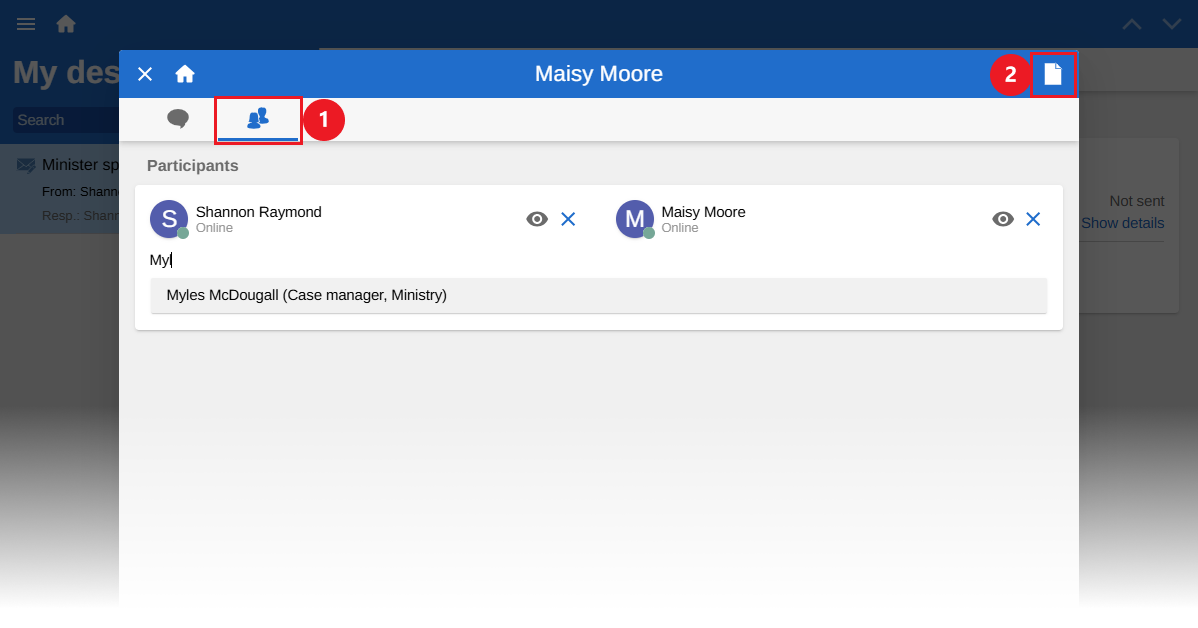
The participants tab found on both chats and notes shows each participant’s picture, whether they have read the latest message, their online status, and their “Out of office” status.
Notes
A note is similar to a chat. One important difference is that all users who can see a record can also see its notes. Notes can be used to share supplementary information relevant to the record.
Select the note icon above the record preview to view its notes.

The note window opens. You can view its contents even if you are not a participant on the note. However, you must be added as a participant if you want to be notified in your inbox about new messages on the note.